

User Tools
RabbitMQ - TicketerEmailFailedDelivery
Author: Aaron Mooney
The interface for the RabbitMQ email queues can be found at loadbalancer:15672 → `http://extlb.ext:15672` and the credentials can be found in pwsafe.
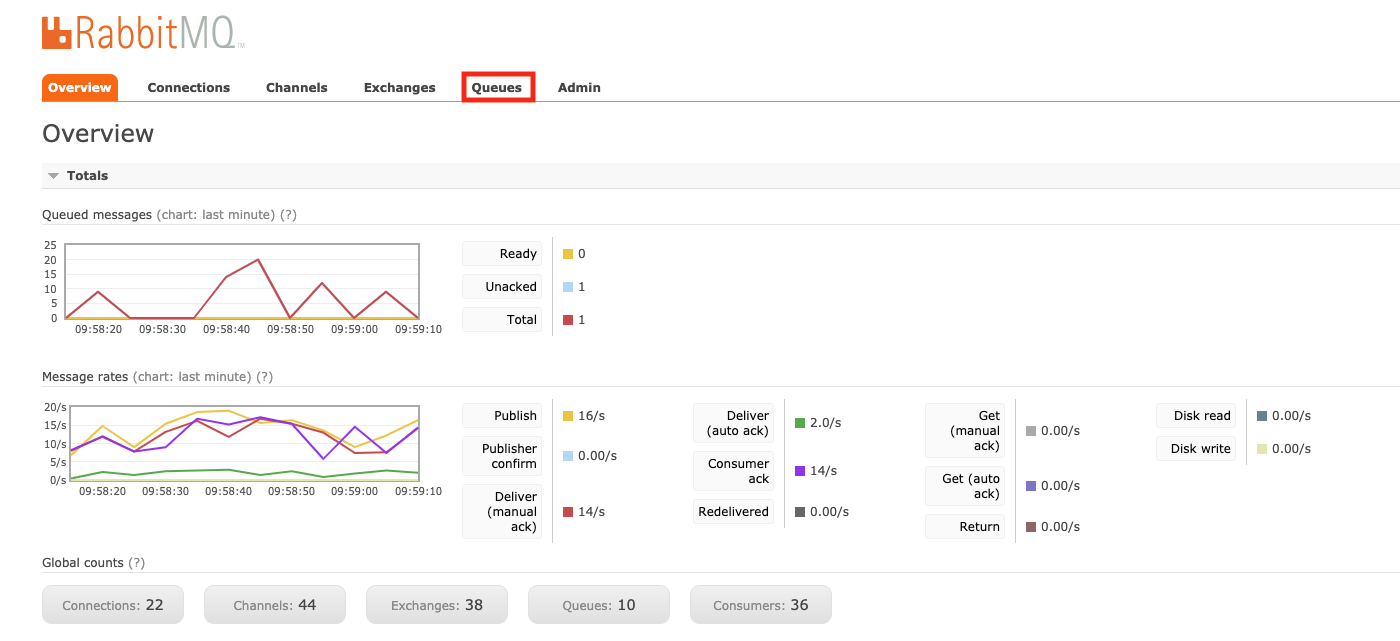
Once logged in you will be presented with this interface. Click on the Queues tab.
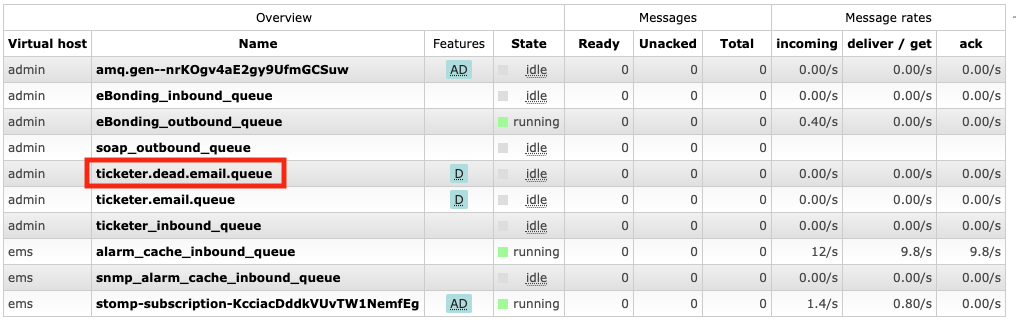
Then navigate to the tickter.dead.email.queue
Scroll down the page and click on the Get Messages tab, then click the Get Message(s) button.
Make sure to use the requeue option so that messages are not deleted.
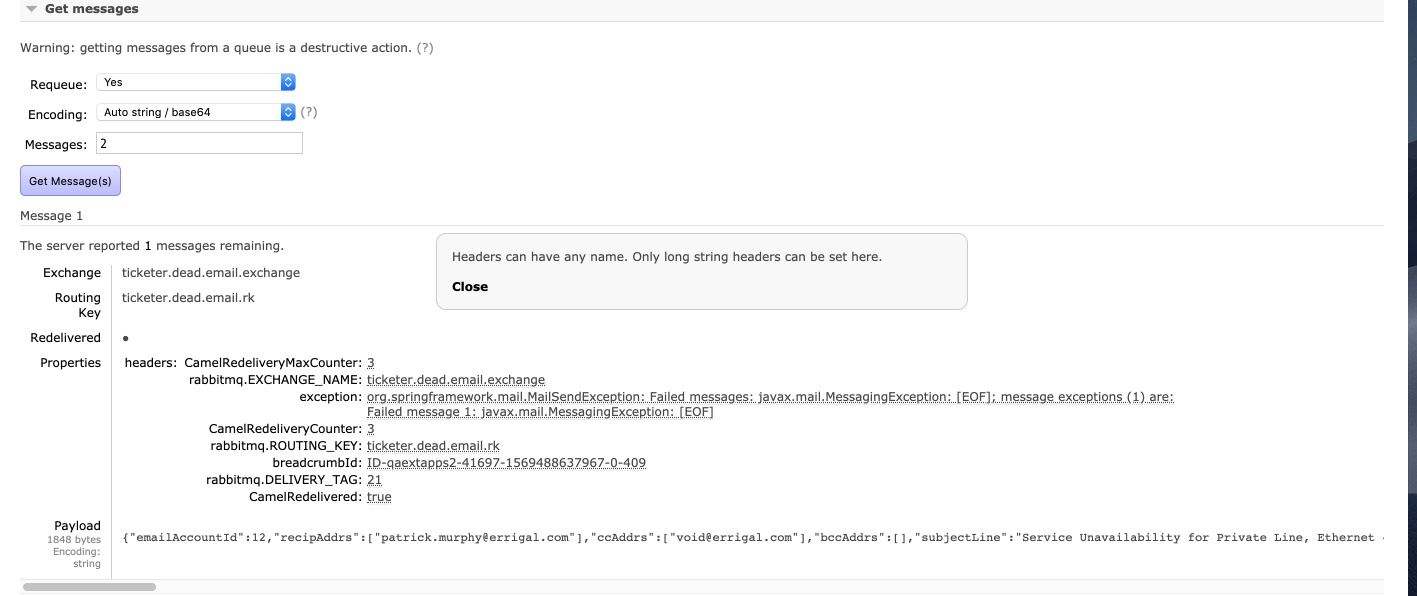
Copy the payload field into your clipboard and navigate back to the queues tab and click on the ticketer.email.queue
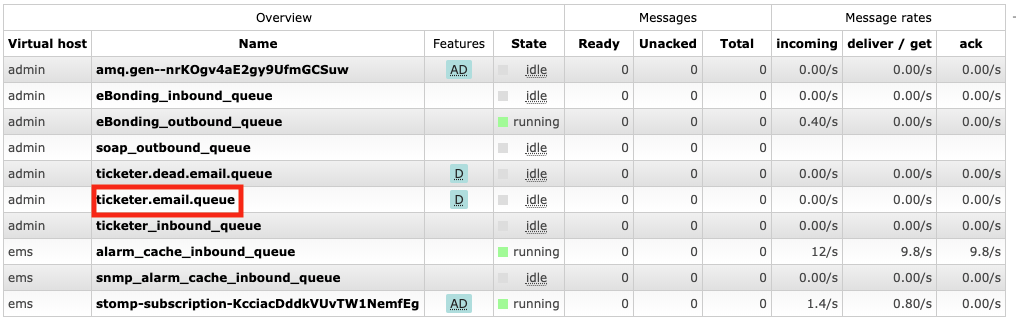
Paste the payload into the payload field of the Publish Message tab and set the delivery mode to Persistent, this is because the queue is durable and makes the message get written to disk.
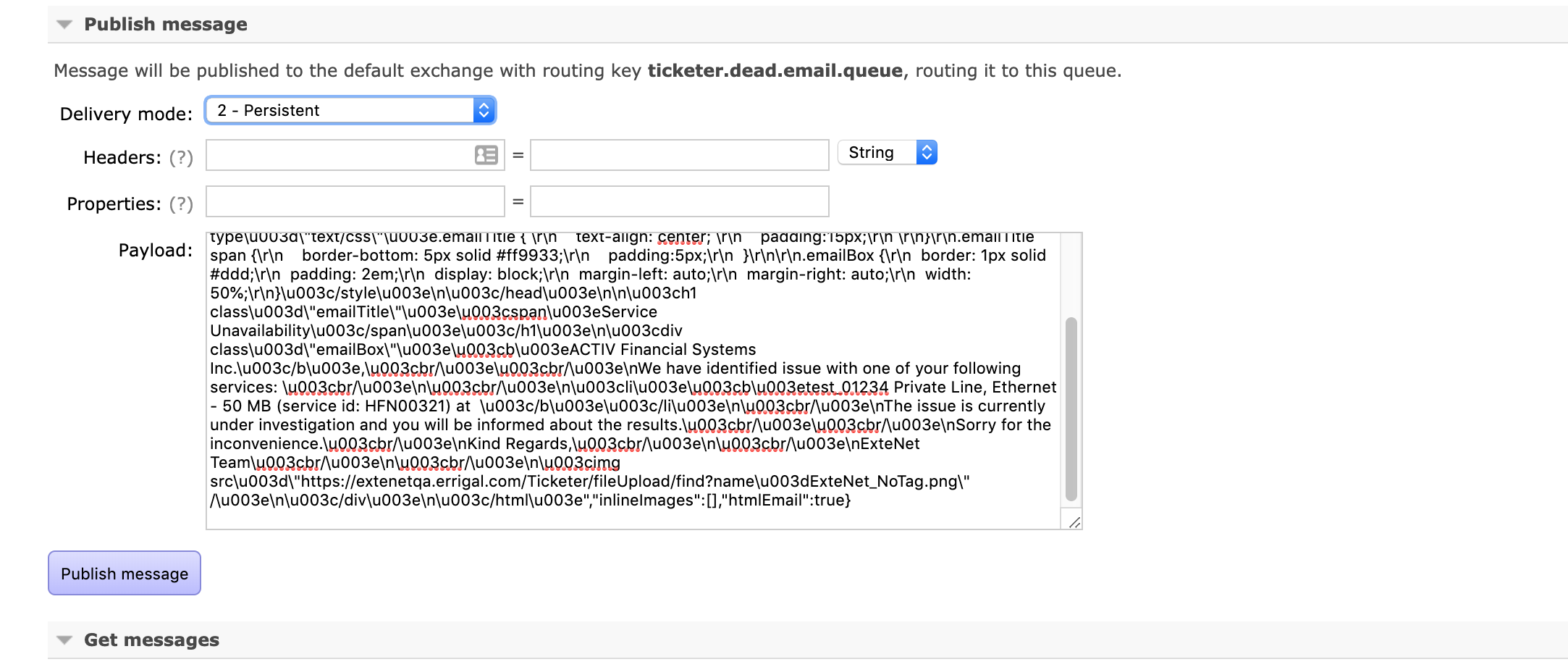
Before hitting Publish Message check to see if the email fields are malformed as this is likely the reason they appear in the dead queue.
An example of a malformed recipient list is “recipAddrs”:[“correct@email.com”,“ incorrect@email.com; incorrect@email.com”].
The second email has a leading space, is missing a closing quote and has a semicolon as a separator and instead of a comma. The third is missing an opening double quote. Fix any discrepancies you see then publish the message.
Finally, once the messages have been re-published, return to the tickter.dead.email.queue and click Purge to clear the dead queue and clear the alert.


