

User Tools
Writing /app/www/public/data/meta/toolsandtechnologies/netgearrouternewforwardingrule.meta failed
toolsandtechnologies:netgearrouternewforwardingrule
Creating a new forwarding Rule on the Juniper Router
— Colm Carew 2017/07/26 04:27
Note this may be different for different versions of the software on the router but try and find similar fields. The main ones for This tutorial are, Policies, Custom Service Objects and VIP forwarding.
- Go to the admin Web UI of the router (10.5.5.1 for the waterford office)
- Click Objects → Services → Custom
- You should see some already there such as JBOSS etc.
- Click New up the top right corner
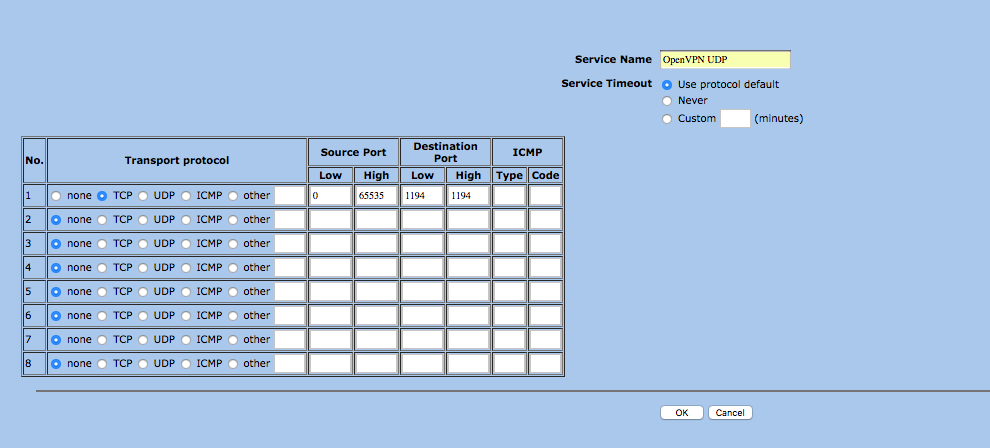
- Give your service a name, say we want Open VPN and are using UDP call it OpenVPN UDP
- Service timeout should be use protocol default
- Next specify your transport protocol, I recommend only using one of these at a time so only use No.1
- In the case of OpenVPN we are using UDP but in most other cases it will probably be TCP
- Click TCP on No.1
- source Port should auto populate, leave that be, we will now change the Destination Port. Low and high should be the same number
- In the case of Open VPN it runs on port 1194 so Low and High on destination port should be 1194. It should look like :
- Click OK once you are happy with it
- Next from the Starting UI Again find Policies (note policies may be in different places on different routers)
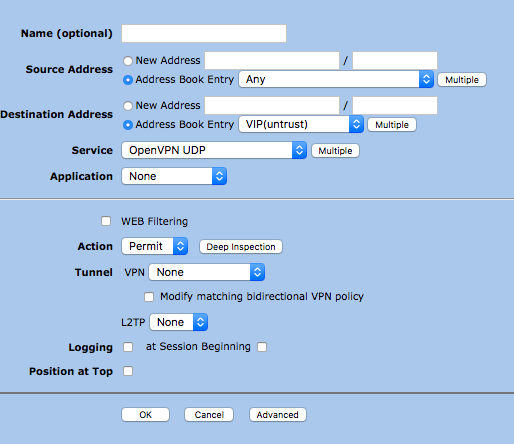
- Click From : Untrust To : Trust, then click new
- Source : Address Book Entry : click ANY
- Destination : Address Book Entry should be the VIP(untrust) in case of having multiple IPs on the router, click multiple and select the IPs you want to allow forwarding to
- Service : this should be the service you created so : OpenVPN UDP
- Leave everything else default and click ok it should look like :
- Now Navigate from the Main Menu to Network → Interfaces → (find the one with the green check) click edit → Up the top click VIP, it should look like :
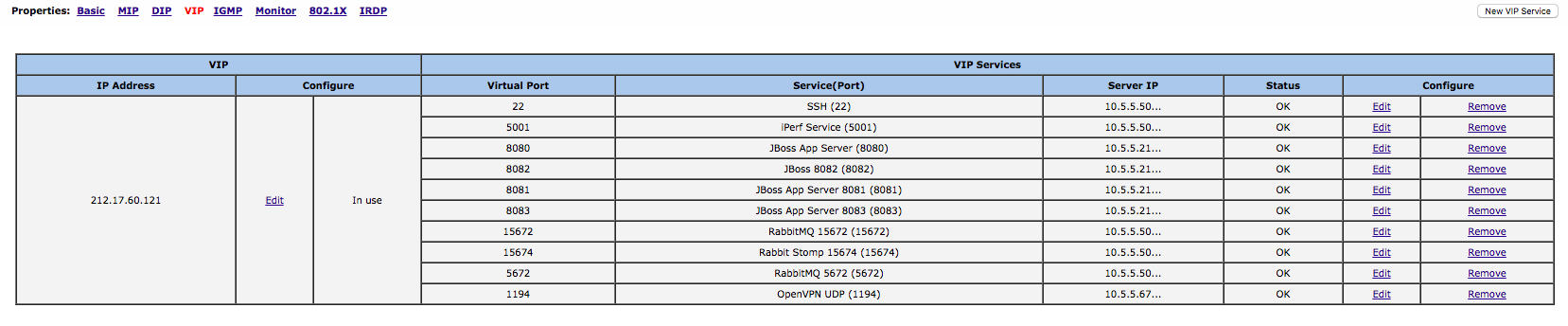
- Click New VIP Service
- Fill in the service you want and the internal IP to forward it to
- Click OK
- Thats it, test it out


toolsandtechnologies/netgearrouternewforwardingrule.txt · Last modified: 2021/06/25 10:09 (external edit)


