

User Tools
Table of Contents
Updating Trap Knowledge
Author: Eoin Joy
Introduction
Occasionally, Errigal or the customer will wish to change the trap knowledge values, either to ensure better matching to alarms or connecting to functionality like neutral host, or to change the human readable fields that show in the Node Monitor and EMS for alarms.
Think about your updates
There are several things to keep in mind for this process:
- Does this affect any matching procedures
- Snmp traps
- Alarm Sync
- Does this affect any neutral host component type links
- Does this affect a small number of entries or is it a technology wide update
- Does this affect the override severity functionality
Snmp traps match to their trap knowledge via the trapName and alarmIdentifier values.
Alarm sync matching is determined by what is present in the trapKnowledgeScript of the DiscoveredTrapConfiguration of a network element, which is generally different per technology.
In the neutral host process, should a trap match up to a trap knowledge that has a componentType filled in, it goes on to run the logicalIdGroovlet and so on, so maintaining the integrity of this matching is important.
Override severity data is also stored with the trap knowledge data, this determines if a GeneralTrapSummary should have its alarmStatus overridden for all GTS matching the trap knowledge entry.
The number of required updates determines whether or not it’s a good idea to manually write the updates.
Writing your updates
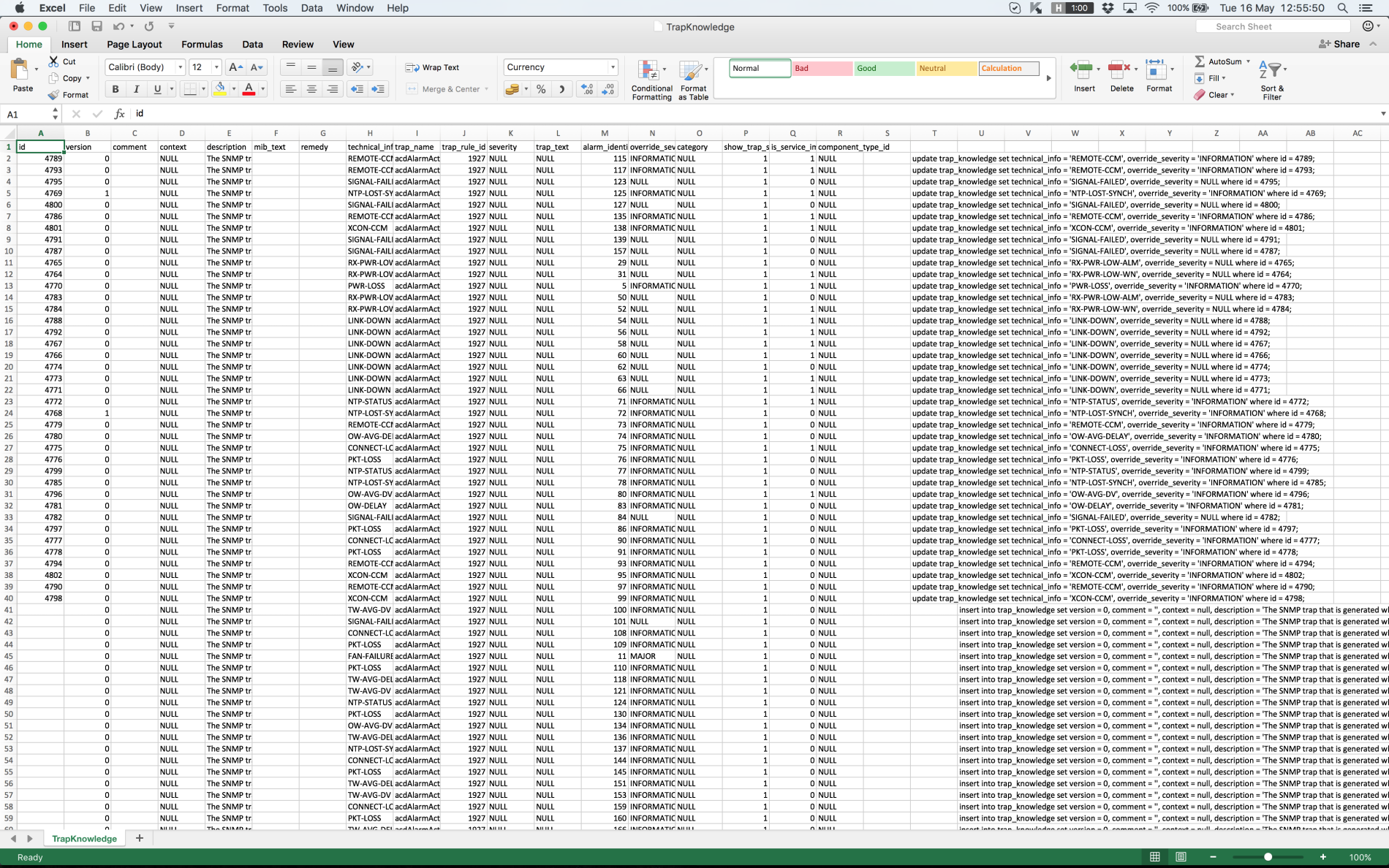
When you are creating enough updates that it becomes infeasible to avoid mistakes when doing manually, it’s a good idea to use some form of spreadsheet like in the image above.
In this example, some of the data provided to Errigal already existed in the database as trap knowledge entries and some did not. In this case then we have both updates and inserts running on the trap_knowledge table.
For insert and update, a simple formula like the following can be used to generate all the updates needed for descriptions when you have the IDs of the rows you wish to change:
=CONCAT("update trap_knowledge set description = '", $E2, "' where id = ", $A2, ";")
For more information on generating SQL queries in Excel, consult the following wiki page: Creating mySQL Queries in Excel
Performing the updates
- Take a backup!
- Run your updating script on the master (where applicable) and make sure to define the snmp_manager database.
- Reset the TrapKnowledgeCache using the TrapKnowledgeCacheController.
- Verify where you can the considerations you made about matching above.


