

User Tools
Table of Contents
Exploration of Basic EMS Functionality
Author: Michelle McCausland
Introduction
The EMS (Element Management System) is an application that is used to manage network elements. Using the EMS, you can manage alarms and network elements without the need to access a network element directly.
Note: A comprehensive EMS User Guide can be found on the Support page of each IDMS application.
Accessing the EMS
The EMS can be accessed via the SNMP Manager application by clicking on the Errigal EMS link in the top navigation menu:

EMS Overview
Upon logging into the EMS application, you will see the main overview screen which can be broken up into a number of various sections:
1. Menu Bar 2. Element Bar 3. Search Host Tree 4. Host Tree Navigation 5. Auto Refresh 6. Ticket Search 7. Widgets
1. Menu Bar
Across the top of the screen you will see a menu bar with different options depending on what view you are in:

For more information regarding these menu bar buttons, consult the EMS User Guide.
2. Element Bar
Underneath the Menu bar is the Element bar. Depending on what view you are on this menu will display different data.
A Remote/Node level view will contain the following:
- Parent name – The name of the parent element. In this case the hub name – AA_Network_Element_01.
- Element name – The element name, in this case the remote name – Remote_03.
- Alarm status – The current alarm status, in this case this value is CLEAR.
- Cluster name – The name of the cluster this element is located in – Cluster A.
- Technology – The associated technology for this element – Technology A.
- Address – The address of the element – 123, Main Street, AZ.

3. Search Host Tree
Using the Search Host Tree search bar, you can search for a specific network element, network group, venue without the need to navigate through the entire host tree. To search for an element, type the name of the element into the search bar and select the appropriate result that appears on the list. This will open that element in its own view.
Additionally, the search feature has auto-complete functionality. As you type anything more than 3 characters into the search bar, suggested results will display that you can select from.
The search bar is located on the left side of the screen above the host tree list.
Advanced Search
Clicking the Advanced Search button underneath the search box will display an advanced search menu.
Advanced Search Options:
- Name In Trap – The name in trap value associated with the element.
- Node ID – The node id value of the element Note: This is not the network element ID value but rather the value “Node ID” which is associated with some node elements.
- Carrier Node ID – The unique identifier value used by the carrier to refer to the element.
- Carrier Sector ID – The sector identifier value used by the carrier.
- Controller Only – The name of the controller / hub network element.
- Latitude – The latitude value associated with the element.
- Longitude – The longitude value associated with the element.
- Street Address – The street address where the element is located.
- City/State/Zip – The city, state, zip detail where the element is located.
Note: Searches are limited to 2,000 results to prevent too much data from being returned. Should this happen, a warning message will display notifying the user that the search limit has been reached.
4. Host Tree Navigation
Across the left side of the EMS screen you will see a list of elements divided into sections based on a tree-like structure. This is referred to as the Host Tree.
Clicking on the arrow to the left of the text will expand or contract the tree. Clicking on each item will open that item on a new page, for example clicking on a hub will open that hub’s view and clicking on a cluster will open that cluster’s view.
The colored icons to the left of the element names denote the severity of the alarms present on the element. This is based on a threshold value. Critical elements are denoted with a red font.
Inside of the colored icons in alarm, you will see that there are 1 of 2 icons which denote if the severity is based on the ticket severity or the alarm severity. The ticket severity is conveyed with a tag icon while the alarm severity is conveyed with a bell icon. Note: These are the same icons that are used in the alarm and ticket counters at the top right of the page.
Elements that are greyed out and marked with a grey icon are off-air elements.
5. Auto-Refresh
The host tree is set to refresh after a set interval to update it with the most up to date alarm information. The Auto Refresh checkbox enables or disables the refresh functionality. This checkbox is located towards the bottom of the host tree.
If the host tree cache needs to be manually reset, it is possible to navigate to a specific URL to achieve this:
customerDomain.com/SnmpManagerEMS/hostTree/listCache
From here, you can select the relevant clear cache option, and this will clear the cache accordingly.
6. Ticket Search
The ticket search bar is located in the top right of the screen. This search bar allows you to search for ticket IDs within the EMS.
To search for a ticket, type the ticket ID into the search bar and hit the return or enter button on your keyboard. If a ticket is found the related element is opened in the EMS view.
7. Widgets
Widgets are a predominant feature of the EMS and accomplish a wide variety of tasks.
Widgets are essentially components or interfaces that allow you to perform different functions within the EMS. For more information regarding EMS widgets, consult the EMS User Guide.
Most widgets have options that allow for refresh and export of data and can be found on the top-right corner of the widget:
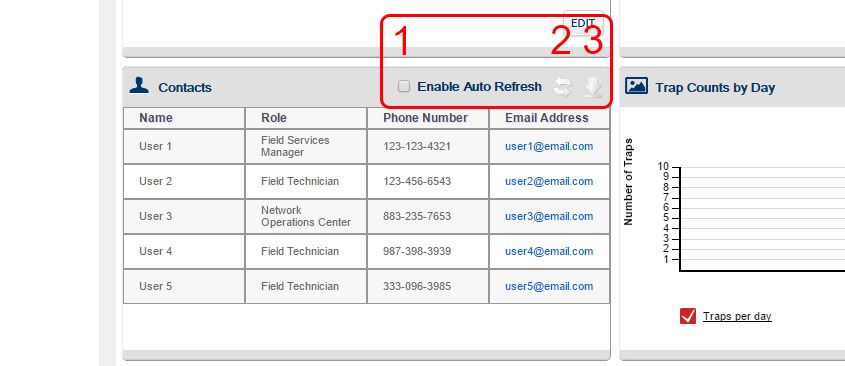
- Enable Auto Refresh – When this checkbox is checked this widget will refresh automatically based on the Refresh Rate chosen (See Refresh Rate)
- Refresh – Clicking on this icon will refresh the data within the widget
- Export – Clicking on this icon will export the content of the widget into an excel file that you can view
Troubleshooting
Host-Tree
Carrier Tree Not Loading For Carrier User
Ensure that the NH (neutral host) clusters are marked as neutral host (cluster table, is_neutral_host field).


