

User Tools
Table of Contents
Configuration of EMS Widgets for Users
Authors: Michelle McCausland
NOTE
As of writing 22/03/23 - Making a connection between a user and widget visibilities as outlined in this wiki is not possible. You can only hide widgets connected to an ems_profile. If you want a collection of users to have certain widgets hidden, you will need a new Visibility with a new SNMP Manager profile in user profile which is tied to a new EMS profile for these users. If you are creating a new EMS profile, its recommended to clone an existing one via the UI of SNMP Manager. Another thing to note is, if you remove a widget that occupies one half of the width of the screen and do not remove its neighbour, it seems to hit a bug and remove all widgets.
Introduction
EMS Widgets are configurable per user. Currently the process is a little involved, as we do not yet have a drag and drop system, so hopefully this page will be able to guide you through the process of widget configuration for EMS users.
Essentially the widgets in the EMS are configured to work within a grid like structure that is defined in the EMS View Layout section. Widgets are highly configurable per user and per view.
Domain - Object Model
The controllers/ database tables we work with for this task are (all in snmp_manager):
- shiro_user
- ems_view_layout
- ems_widget_permission
I would recommend taking a look at each of these items both in the database and via the front-end view to see how they link together.
The ems_view_layout is linked to the shiro_user based on the user_id (SELECT * FROM snmp_manager.ems_view_layout where user_id = <USERID>;)
The ems_widget_permission is then linked to the ems_view_layout based on the view_layout_id (SELECT * from snmp_manager.ems_widget_permission where view_layout_id = <IDOFVIEWLAYOUT>;)
EMS View Layout Controller
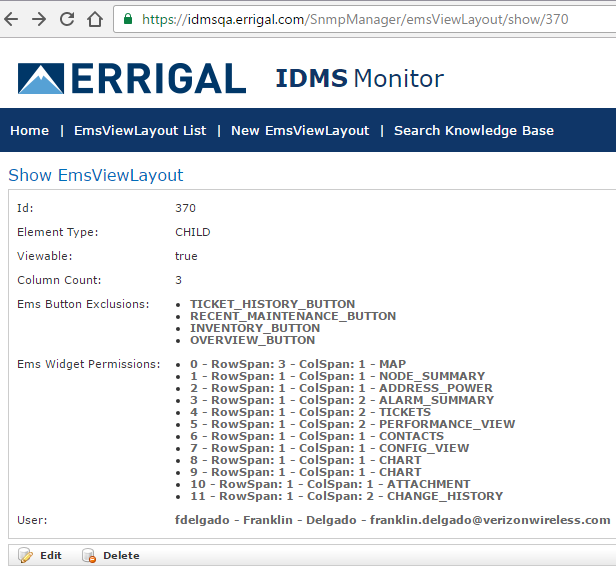
The Element Type refers to the level that this view is for e.g. overview, parent, cluster, parent, child.
Viewable - This option determines whether this view is visible to the user or not.
The Column Count refers to how many columns wide the screen will be.
EMS Button Exclusions This section allows you to configure what buttons to exclude from a view e.g. Ticket History Button, Recent Maintenance Button etc.
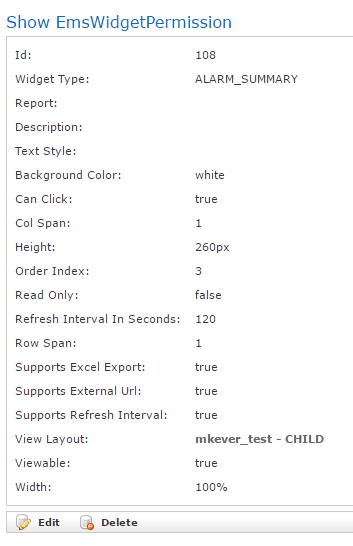
EMS Widget Permissions This section contains the list of widgets that are configured to appear in the view. Each of these widget permissions can be configured by clicking on them and updating the values accordingly (See EMS Widget Permissions Controller Section).
- The first number refers to the order in which the widgets will appear i.e. 1 will appear before 10 etc.
- The second number is the row span - this determines how high the widget will be on screen. A row span of 1 will mean the widget will only be 1 row high.
- The next number is the col span - this determines how wide the widget will be in relation to the value defined in the Column Count section above. A col span of 2 will mean the widget will be 2 columns wide.
- The last option refers to the type of widget this is e.g. Map, Tickets, Config view.
User - Here you will see which user this widget view is associated with.
EMS Widget Permission Controller
Important Notes for Troubleshooting Customer Queries
- The main area where all of this knowledge will come into play is in user configuration and user account troubleshooting.
- If you are configuring a whole new set of widgets for a new user it is important to receive a user to emulate from the customer if possible. This will make things easier when it comes to configuration.
- Testing is also a highly important part of this process. Ensure that you test any widget changes by logging in as the user in question to verify changes are successful - this will save you time in the long run by ensuring you are correct the first time!
- The following excel helper sheet was generated to assist with updating widget options via sql queries:
NOTE: Ensure to sanity check all queries before running against a database to ensure correct!


