

User Tools
onboarding:nocportal:understanding_of_map_overlay_types
Table of Contents
Understanding of Map Overlay types
Author: Michelle McCausland
Getting started
In order to start working with the Noc Portal select a cluster from the dropdown.
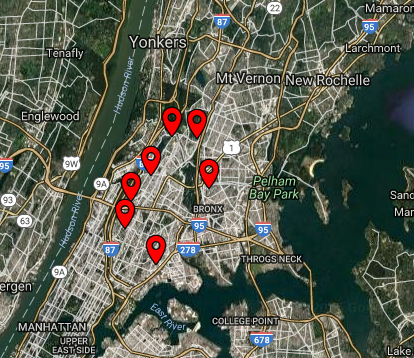
As mentioned previously in Demonstrate understanding of how network elements and markets appear in Portal the map view will zoom to the location selected and various markers will be shown on the map depending on the selected view. See below:
What are map overlays and how to access them
Map overlays such as fiber and weather overlays can be turned on/off per cluster based on the user's needs.
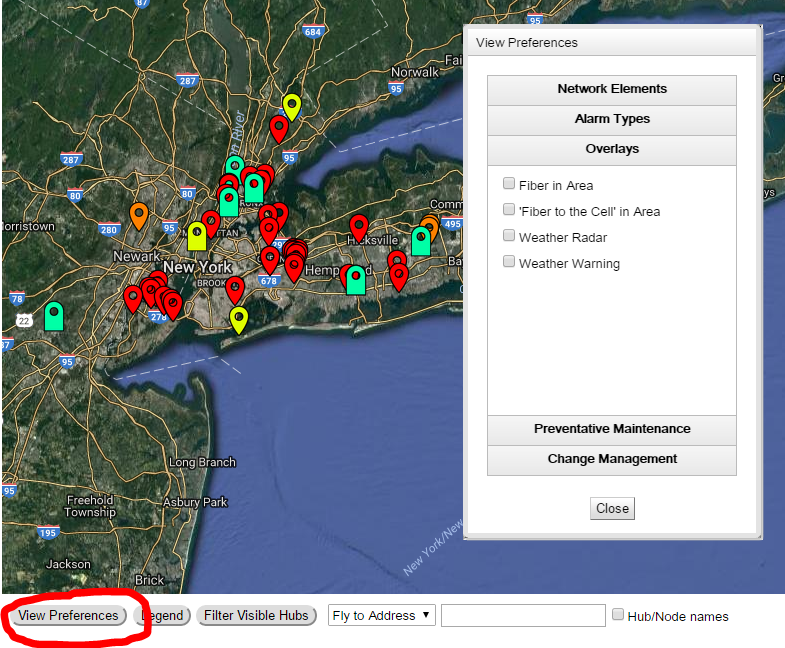
To access the map overlays preferences click on the View Preferences button located in the bottom center of the screen and click on the Overlays menu:
Working with map overlays
As of the time of writing there are 4 map overlay options to select:
- Fiber in Area - will show all fiber for the selected area i.e. Colorado. A pop up will display on screen showing what fiber overlay is currently loaded if there is one.
- Fiber to the cell in area
- Weather Radar - shows the latest weather radar
- Weather warning - shows the latest weather warnings
Self-Assessment
Note the following in a notepad/textpad:
- How do you access the various map overlays?
- What are the current types of map overlays currently configured in the Noc portal?
- What does selecting fiber in area achieve?
- What does selecting weather radar achieve?
- How do you determine what fiber overlay is currently loaded on screen?
onboarding/nocportal/understanding_of_map_overlay_types.txt · Last modified: 2021/06/25 10:09 by 127.0.0.1


