

User Tools
Table of Contents
Understanding of Alarm Type views
Author: Michelle McCausland
Getting started
In order to start working with the Noc Portal select a cluster from the dropdown.
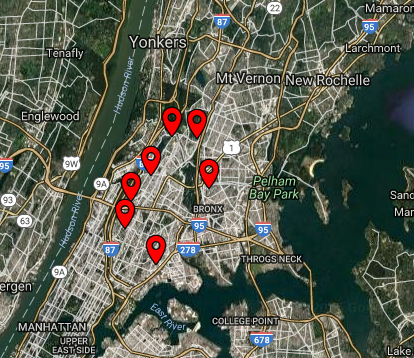
As mentioned previously in Demonstrate understanding of how network elements and markets appear in Portal the map view will zoom to the location selected and various markers will be shown on the map depending on the selected view. See below:
What are alarm type views and how to access them
The type of markers which appear on screen can be determined based on a number of view preference options, in this case we will discuss the Alarm Types View.
In order to access this view preference menu click on the View Preferences button located on the bottom center of the screen and click on Alarm Types to open up that menu:
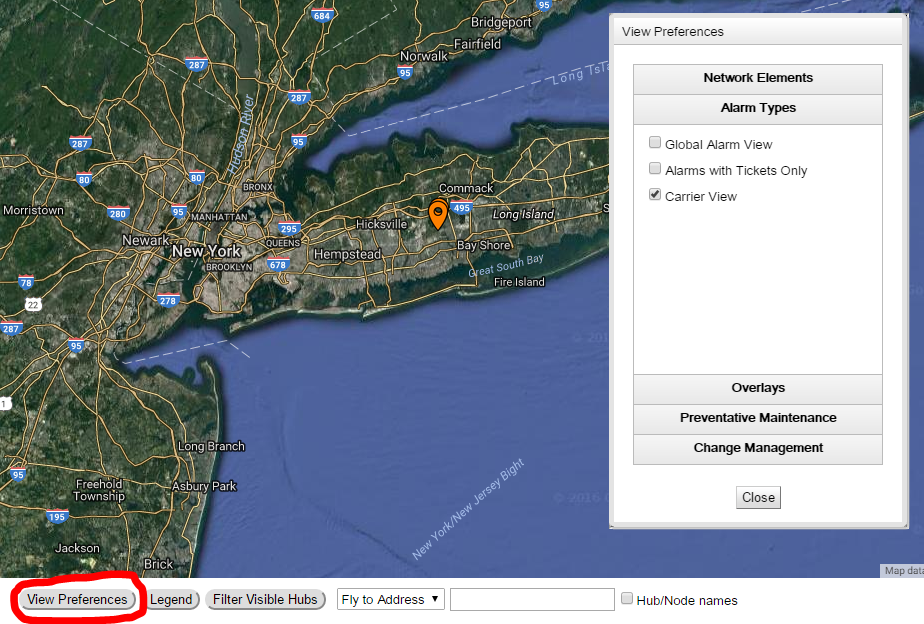
Depending on your account configurations a different alarm type option may be selected by default.
As of the time of writing there are 3 options under the Alarm Type View Preference:
- Global Alarm View - shows all alarms for the selected cluster or cluster group.
- Alarms with Tickets Only - shows all alarm with an associated ticket for the selected cluster or cluster group.
- Carrier View - shows all alarms with an associated ticket which has the update for carrier checkbox ticked.
Selecting or deselecting each of these options will update the view on the map in terms of the icons that are view able.
Self-Assessment
On a notepad/texpad jot down the following answers:
- How do you access the alarm type view preferences?
- What does the carrier view signify?
- What does the alarm with tickets only view signify?
- What does the global alarm view signify?


