

User Tools
Table of Contents
Administration: Map Overlays
Author: Michelle McCausland
Introduction
It is possible to view fiber in the Noc portal based on cluster selection (View Preferences button > Overlays > Fiber in Area).
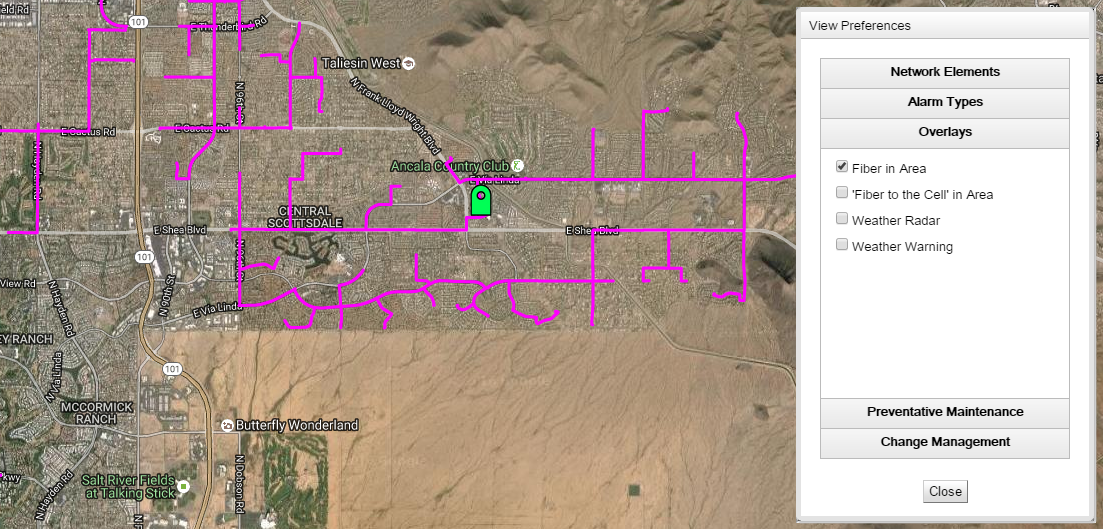
Fiber is configured in the form of KML and KMZ files; a KMZ file being a compressed or zipped KML file.
Fiber is configured on a cluster basis and can be configured in the Manage Overlays section of the Noc portal.
Create a new overlay
To create a new overlay click the Create Overlay button and you will be presented with the following:
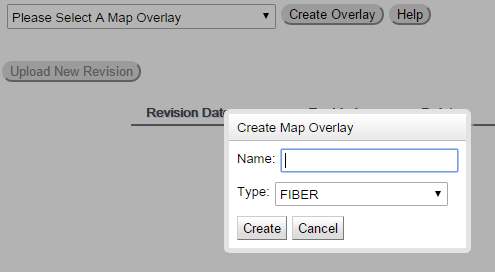
Once you have given a name to the overlay and selected the type of overlay click the Create button to create a new overlay
Edit an existing overlay
Selecting an overly from the dropdown will present the following:
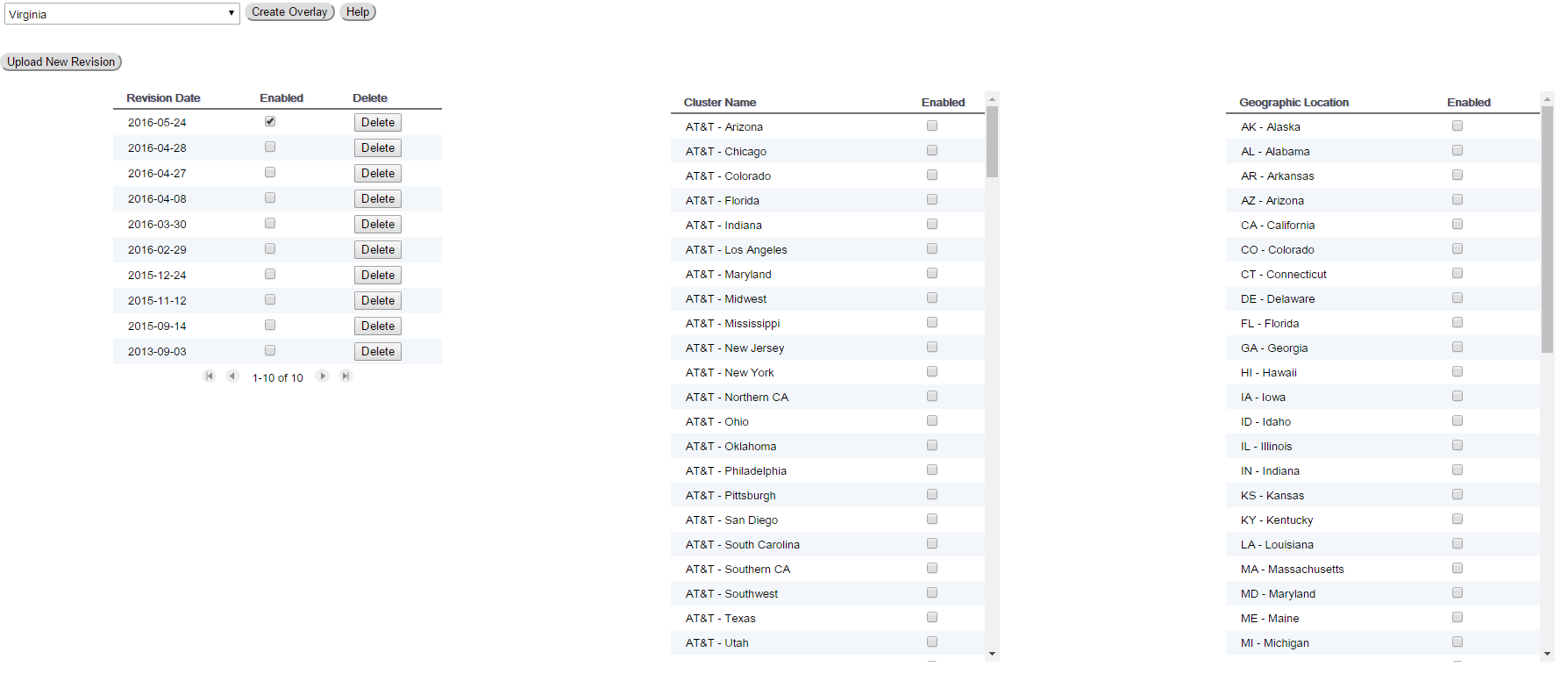
To add a new KML update to this overlay click on Upload New Revision, submit the file, add a revision date and click Submit. To ensure this has been correctly set up ensure that the new revision is marked as active and the older version is not marked as active.
To alter the clusters that this overlay is used from simply click the enable check boxes beside the appropriate cluster name.
Self Assessment
- Outline the process of creating a new overlay including how to access the map overlay section in the noc portal
- Outline the process of adding an updated kml file to an existing overlay
- How do you delete an old overlay?


