

User Tools
Table of Contents
Creating a new cluster/visibility in all applications
Author: Cathal O'Keeffe & Michelle McCausland
Introduction
We organise the network elements we monitor into clusters (sometimes called visibilities).
For certain functionality to work correctly, these clusters need to exist across all three applications.
Thankfully there's some functionality to sync clusters across applications. Here I will walk you through creating clusters in each application.
Ticketer
In the Ticketer Workbench under Admin Options there is an option called Visibility Levels.
This button should open a page with a cluster tree on the left and a user list on the right.
To add a new cluster find the cluster you wish it to be a child of in the tree on the right and right click on it, then select the “Add Visibility Level” option.
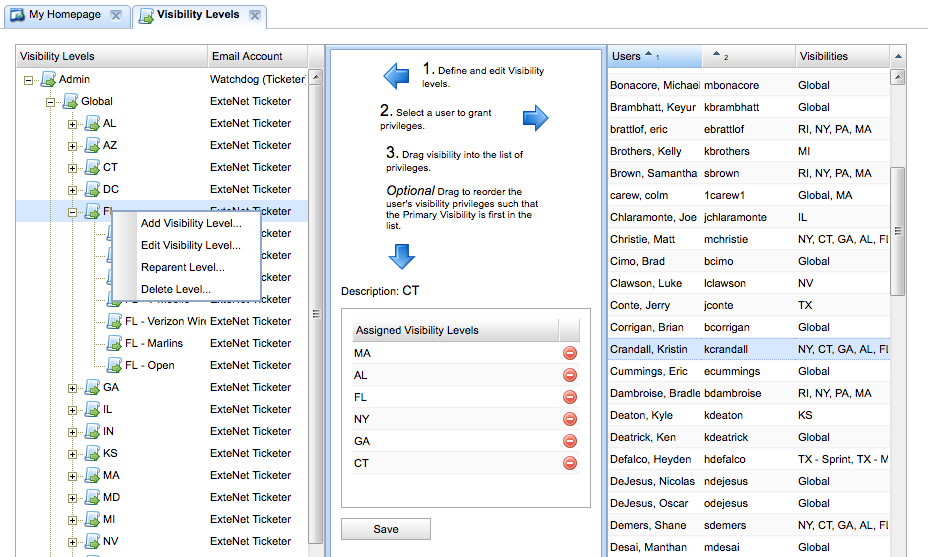
Fill in the details as needed and save it.
SNMP Manager
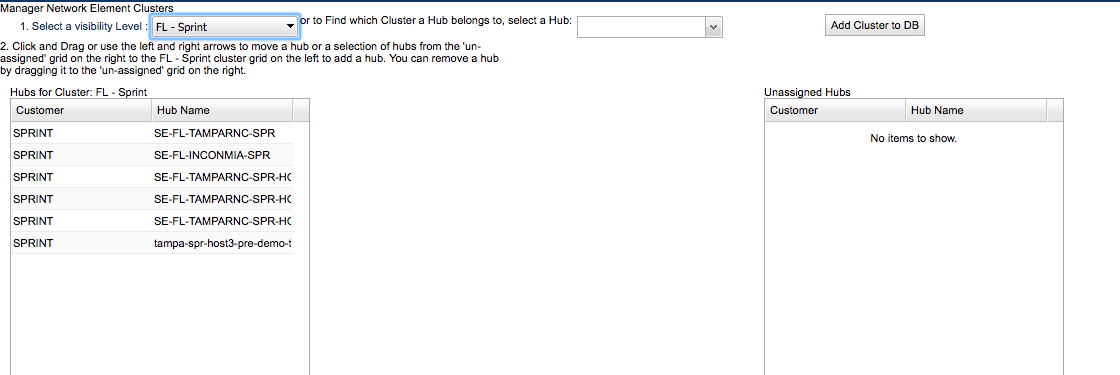
In the SNMP Manager open the Cluster Manager controller.
There should be a dropdown that lets you select visibilities (this reads from the Ticketer DB).
From this menu find the cluster you created in the ticketer and select it.
After selecting it click the button “Add Cluster to DB”.
Important Note: As of the time of writing (June 2017) it is necessary for you to manually populate the network value of the cluster table for Open/OPN clusters
This is necessary until IDMS-1774 has been implemented.
Noc Portal
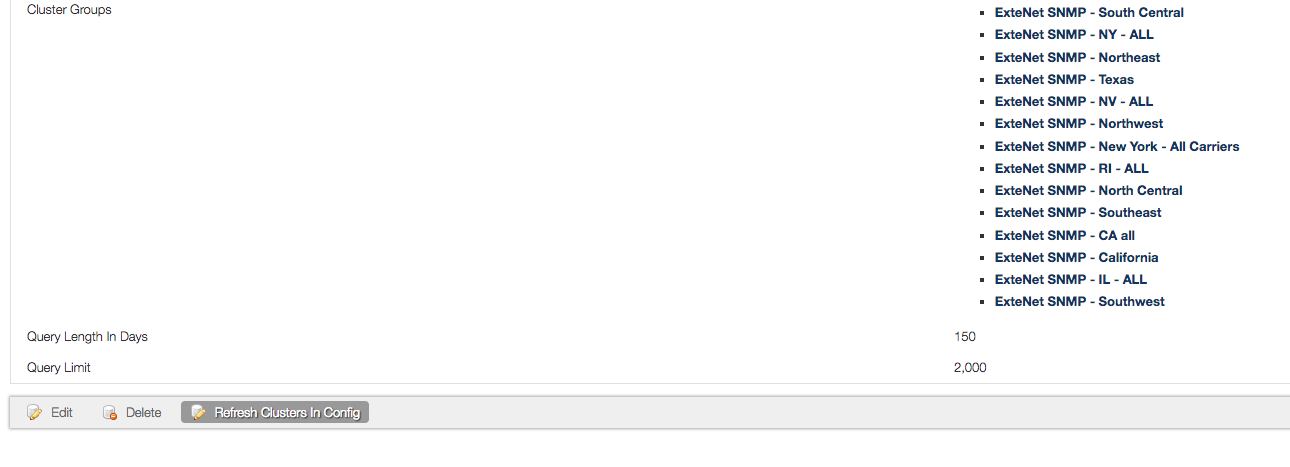
Finally in the NOC Portal admin section go to SNMP Source Configuration and open the relevant SNMP Manager configuration.
At the bottom of the page there should be a button labelled “Refresh Clusters in Config”. This should populate your new cluster into the NOC Portal as well.
Cluster Sync Functionality
With the implementation of IDMS-1506 in IDMS 3.1 there is now a cluster refresh task that automatically syncs clusters between the applications.
- The cluster refresh task runs every 10 minutes in the SNMP Manager. It ensures that clusters/visibilities added to or deleted from the Ticketer are synced to the SNMP Manager.
- The cluster refresh task runs every 10 minutes in the Noc Portal. It ensures that clusters added to or deleted from the SNMP Manager are synced to the Noc Portal.
For more detail on how this behaviour works, please consult the SNMP Manager and Noc Portal user guides.
To see this sync in the logs grep for Results size of visibility refresh
If searching the logs for cluster deletions:
services.ClusterService - DELETED CLUSTER Test3 - T-Mobile
Cluster Sync Troubleshooting
Effective of REL-3.3
The cluster sync can be triggered at any time by accessing the Cluster controller from the SnmpManager homepage.
If the Carrier tree does not load after the cluster sync in the EMS:
- Check the Ticketer Visibilities Sync Carrier Information Absence Fallback option in the active Configuration entry
- Sync again
- Invalidate carrier host-tree cache (HostTree controller in the SnmpManager)
- If the problem persist, use the following query: select name from network_element where ne_type=“CUSTOMER-NETWORK”. This query retrieves all the carrier(network)-representing network elements.
- Based on the results of the step 4 (previous step), update the *ticketer.visibility entries to point to the relevant carrier (network) by setting the correct *carrier* value. - Invalidate carrier host-tree cache (HostTree controller in the SnmpManager**)


