Table of Contents
Project Setup
Project Creation
- In Intellij select create new project.
- Select gradle as build tool and groovy and java from addtional libraries and frameworks.
- Next give the GroupId in line with convention -'com.errigal'.
- Under ArtefactId enter the name of the project - eg, NocPortalGebTesting
- Next, select 'Use auto-import' and 'Create separate source sets per module'.
- Next, choose your project location and finish.
Project Structure
- In your project folder create a new directory 'src'.
- Within src create a new subdirectory 'test'.
- Within test create 2 new subdirectories; 'functional' and 'resources'
- In the functional directory create new directory 'com.errigal.projectName'.
- In 'com.errigal.projectName' create 4 new subdirectories; modules, pages, sharedResources and spec.
- In the resources directory create 1 new directory; 'images', and 1 new file 'GebConfig.groovy'

Jars and Drivers
- The latest version for Sikuli can be found at http://sikulix.com/
- Once downloaded, create a new directory in your project called libs and copy the sikulixapi.jar from the downloaded package to the newly created libs directory.
- The chrome driver necessary for driving the browser can be found at https://sites.google.com/a/chromium.org/chromedriver/downloads
- Once downloaded, create a new directory in your project called drivers and copy the chrome driver to the newly created directory.
- ISSUES : If, when running the project, the browser fails to start make sure the version of chrome driver is compatible with your version of chrome.
Configuring Build.gradle and GebConfig.groovy
- In the build.gradle file add the following:
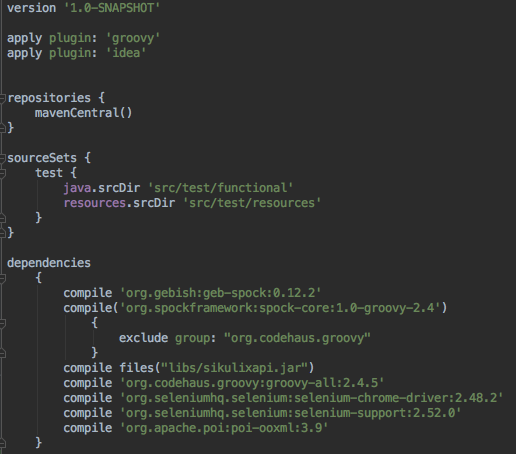
- This will point to the appropriate test directories and get the necessary dependencies for Geb, Spock and Selenium - (This also includes necessary dependency for creating excel files as it was necessary for previous project)
- The sikulixapi.jar is added via 'compile files('libs/sikulixapi.jar')'.
- In the GebConfig.groovy file add the following:
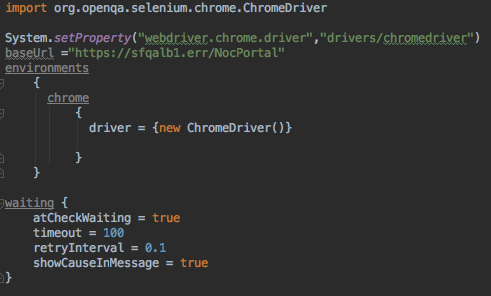
- Geb looks for this configuration file on start-up and if is not found continues with default values.
- The System.setProperty points to the chrome driver you have downloaded.
- The base url is the url to which all Geb Page classes urls will be appended.
- In the environments closure we instantiate the Chrome driver.
- In the waiting closure we configure the timeout limit and retry interval for when 'waitFor{}' is invoked in the test classes or '(wait:true)' is invoked on page content in the Page classes.


Function of other directories
- The spec directory will contain the test classes and extend the Spock 'Specification' base class.
- The pages directory will contain classes containing:
- The page url to be appended to the HTML data for testing.
- A static 'at' checker.
- Content closure within which the page elements are modelled.
- The modules directory will contain data common to multiple pages.
Spock
Spock tests, or feature methods, are located in the specification directory of the project. The test spec class must extend Specification or GebSpec. Feature methods are named with String literals. A feature method must have at least one block. These blocks consist of given, when, then, expect and cleanup.
Spock Feature Methods
As stated previously a feature method must contain at least one block. While there are 5 blocks to choose from in practice only 2 are really necessary; when and then. 
Spock Fixture Methods
Like JUnit Spock provides fixture methods for setting up and cleaning up before each test or class. 
Spock Extensions
Spock also provides extensions to the feature methods by use of annotation. 
GEB
Navigators
Geb locates page content by use of a JQuery like syntax.
        1. $('input')                           - returns all input elements on the page
        2. $('div', 0)                          - returns the first div element
        3. $('div', id: 'someDiv')              - returns the div with matching id
        4. $('div.someClass')                   - returns div/divs with class equal to 'someClass'
        5. $('div', 1, title: 'someDiv';)       - returns div with title 'someDiv' at index 1
        6. $('td', text:'My data')              - returns td or tds with text matching 'My data'
        7. $('td', text:contains('My data'))    - returns td or tds whose text contains 'My data'
NAVIGATOR ISSUES
Some elements can prove more difficult to access than others:
- With many elements on the page location of the element can time out or prove unsuccessful.
- The element itself may not have a distinguishing tag (class, id, name) or , as is the case with GWT, these tag values may change on reloading the page
- Trying to access the data of a specific table row.
Geb provides some more JQuery like syntax to get around some of these instances.
        $('th', text:'Some Heading').parent('table').find('tbody')[0].find('tr').text() - will return all table rows text of the first tbody element in the table with heading 'Some Heading'

        $("table", class: "gwt-TabLayoutPanelContent").find("td", text:"Select check").previous("td").find("input") - accesses the checkbox in the table located before the td with text 'Select check'
Occasionally attempting to access the text of an element will return null when the text is clearly visible in the GUI. In some cases the value() method can resolve this.
$('input', id:'name').value()
In cases where this does not succeed, if the text to be verified is already known we can access the browsers 'find' functionality and copy the highlighted text from the screen.
        //Using Sikuli to open the browsers 'find' search box and type to it
        screen.keyDown(Key.CMD + "f")
        screen.keyUp(Key.CMD + "f")
        screen.type('Text I wish to validate')

        //Using java robot to copy text to system clipboard and store returned value in string
        Robot r = new Robot()
        r.keyPress(KeyEvent.VK_META)
        sleep(200)
        r.keyPress(KeyEvent.VK_C)
        sleep(200)
        r.keyRelease(KeyEvent.VK_C)
        sleep(200)
        r.keyRelease(KeyEvent.VK_META)
        sleep(2000)
        String getTextForValidation = (String) Toolkit.getDefaultToolkit().getSystemClipboard().getData(DataFlavor.stringFlavor)
Pages
Geb Pages are used to provide the url, an 'at' checker to verify the page and a content closure to model elements for interaction.

As seen above elements are defined using navigators within the content closure. It is possible to prefix the defining closure with '(wait:true)' as seen in certain cases. This invokes the GebConfig.groovy waiting presets.
WAITING ISSUES In some edge cases this '(wait:true)' prefix may fail to handle an element in the way you would imagine. Returning from another page and attempting to immediately access the element may result in an error, or similar results may be seen while dealing with a popup dialogue. In these cases where a prefixed element is still failing to be acquired or clicked it is necessary to directly invoke the waiting clause with the 'waitFor{someElement.click()}' closure directly in the test.
Modules
Modules provide a means of encapsulating data that is repeated or common across multiple pages. A Module is is defined as in the class below.
It is then included in the page content with the following syntax.
profile {module MyProfileModule}
Elements of the Modules content are then accessible with a chaining syntax.
profile.firstName = 'MyUsersFirstName'
Spec
The spec directory contains the test classes. Each test sheet written for the application comprises one test class and is named with the name of the test sheet followed by the word spec in-line with convention , eg, TestUserSpec.

Once the developer declares which page they are at in the code they can then refer to the content within that pages closure.
SharedResources
This directory is used for logic which will be required throughout all test classes such as log in methods, user setup, fields for validation etc.
Sikuli
Image Setup
Following the inclusion of Sikuli the ImageSetup class has been added to the SharedResources directory. Here the Sikuli Screen is instantiated and image files stored in the resources/images directory are instantiated in the form of Sikuli Patterns for use in validation or application interaction throughout the test classes.

Using Sikuli
With the Screen instantiated in the ImageSetup you can can use sikuli to verify or interact with the GUI. The sikuli screen constructor can take an int argument specifying which screen in an extended display you wish it to work on, ex, Screen.s = new Screen(1). While this can be convenient while developing it has shown some inconsistencies. For this reason it is better that tests are carried out with only one active monitor.
   //using sikuli to verify, click and locate objects
   screen.find(someImg)       - fails if not found
   screen.exists(someImg)     - returns a boolean
   screen.findAll(someImg)    - iterator of all matches found
   screen.click(someImg)      - clicks image
   screen.doubleClick(someImg)- double click
Sikuli searches with a default similarity of 70% or 0.7. While this is suitable for most images in some cases the similarity required may be lower or higher depending on needs. This can be achieved with the similar method.
   //lowering similarity to catch all near matches
   screen.findAll(someImg.similar((float) 0.6))

   //raising similarity to 95% to eliminate any near matches
   screen.click(someImg.similar((float) 0.95))

   //selecting a point other than center of found image
   screen.click(someImg.targetOffset(20,15))
Overall Issues
Stale Element Exception
Known Cause This is usually caused by attempting to access an element contained within a popup or some content which was not previously visible.
Solution Invoking waitFor{} closure on the action in the code producing the error.
Element not clickable at point
Known Cause This is usually caused by moving from a new page back to an old one and attempting to access an element.
Solution Invoking waitFor{} closure on the action in the code producing the error.
Wait Timeout
This can be caused by inaccurate arguments provided to the waitFor closure such as navigator selection, an image not present etc.
Required Data for Test Execution
In the case of the NocPortalGebTestingProject some data is presumed to exist before testing.
- Critical and/or Major alarming nodes in Verizon New York Cluster
- Preventative Maintenance markers of each type in the same cluster.
- PM off air markers of each type.
- Change Management Markers (Specific to Crown)
- Change Management Off-Air markers