Table of Contents
Node Monitor View
Author: Cathal O'Keeffe
Introduction
The Node Monitor is the primary GUI our customers use to view alarms as they come in.
Node Monitor Views
The Node Monitor has multiple views, but all of them are based around displaying alarms on the systems we monitor.
Each alarm is displayed in a row like this:

The colour of the box indicates the status of the alarm:
- Critical and major alarms are red
- Minor alarms are yellow
- Information and warning alarms are blue
- Cleared alarms are green
- Acknowledged alarms are grey.
- In the top row we have the current status of the alarm, the time we received the trap at, the ID# of the general trap summary entry for this alarm and the ID# of the ticket associated with this alarm if one exists.
- The second row shows the name of the site the alarm originates from, the technology of the site and the IP address of the site (with a clickable link to visit it).
- The third row has the name of the alarm, the category of the alarm, the alarm identifier and, if the alarm has cleared, the time the alarm cleared at.
- The fourth row lists the probable cause of the issue, a possible remedy and optionally a summary of the alarm that is generated within the trap rule.
- The fifth row only exists for alarms that have been acknowledged - i.e. a ticket has been created for them in the ticketer. It shows the time the ticket was acknowledged at.
- The alarm name populated from the trap knowledge table if a matching entry is found, otherwise it is the name of the trap that created the alarm only if a matching trap knowledge entry is found.
- The node monitor has four functional tabs which will be described in more detail in the following sections.
1. Trap Summary Tab
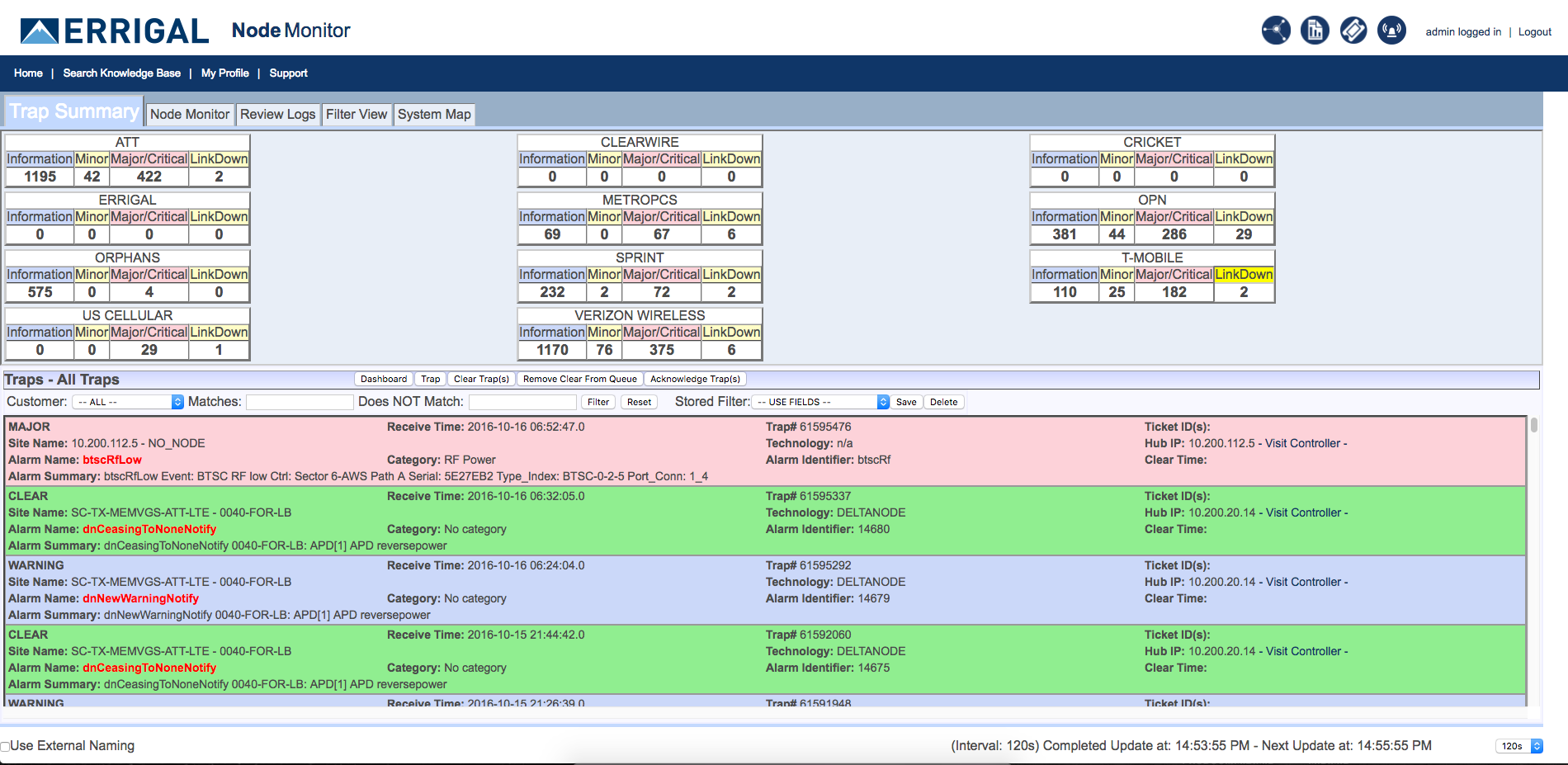
The first tab is the Trap Summary tab which displays an overview of the the number of alarms of each severity on each different carrier we monitor and below it a list of currently open alarms.
Clicking any of the numbers under a carrier here opens the overview of that carrier in the Node Monitor tab.
The alarm list has a filter that allows you to filter out alarms that do or do not contain certain string values.
Above the filter there is a row of buttons. These perform functions based on the alarms that currently selected in the alarm list.
Multiple alarms can be selected at once by holding ctrl or shift when selecting alarms.
The Dashboard button opens the currently selected alarm in the Node Monitor Tab.
The Trap button displays a shorter summary of all selected alarms in a popup panel.
The Clear Trap(s) button clears all currently selected alarms (you will be asked to confirm).
The Remove Clear From Queue button removes any alarms that have cleared from the list.
The Acknowledge Trap(s) button acknowledges all selected traps and optionally creates a new ticket for them. (Acknowledged alarms don't appear in the Trap Summary tab).
2. Node Monitor Tab
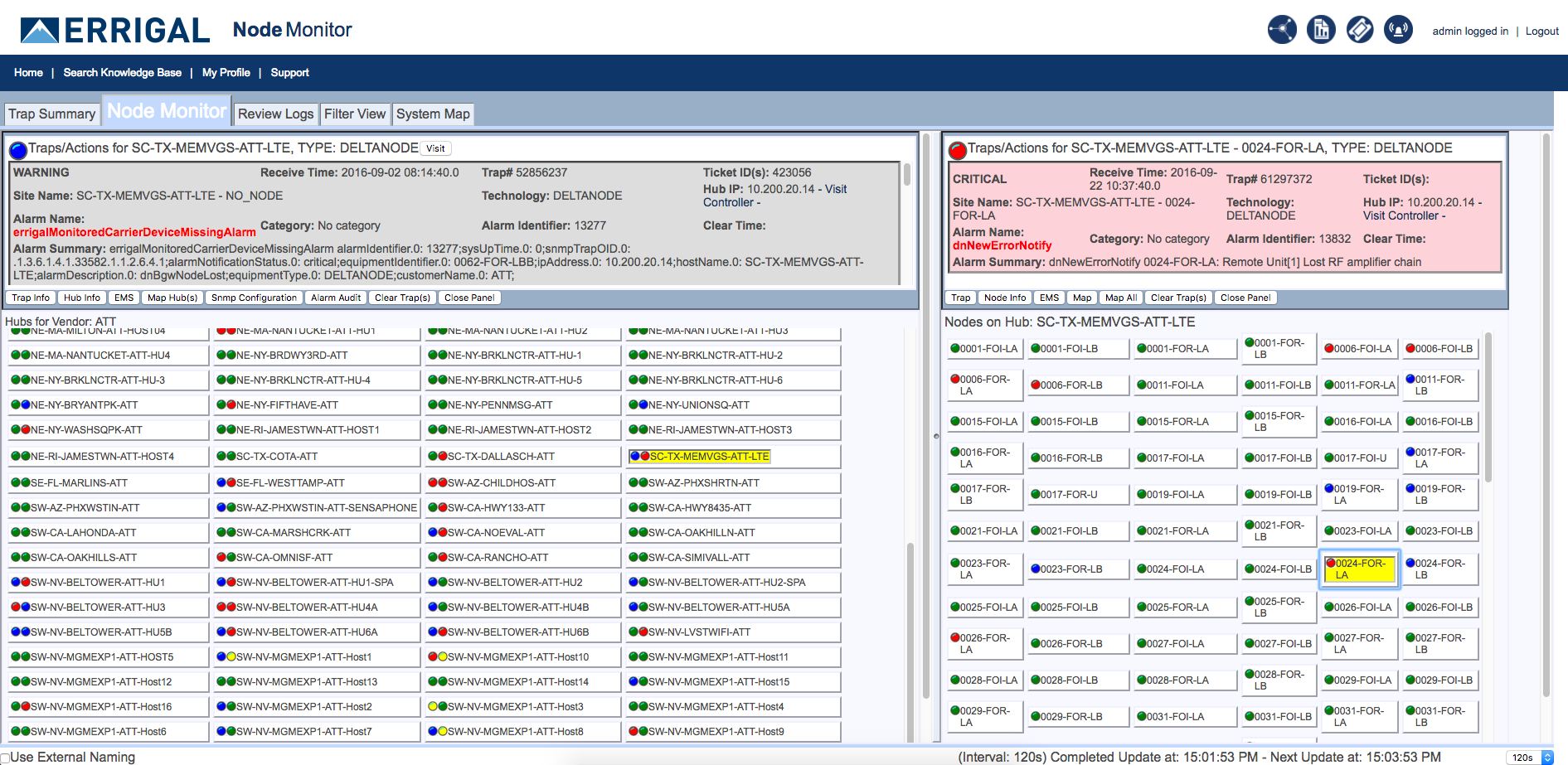
The node monitor tab is split into two halves.
The left half lists the all the hubs (or “controllers”) for the currently selected carrier (or a message telling you to select one if you haven't). Each hub has two icons next to its name.
The colour of the left icon represents the severity of the worst alarm that exists on the hub while the right icon represents the severity of the worst alarm on one of its child components. Green means no current alarms.
Selecting a hub will populate the left half of the screen with all the child components belonging to the hub.
These also have a coloured icon next to them which represents the severity of the worst alarm on that component.
When you've selected a hub and a node a full alarm list for each should display at the top of the screen.
This panel contains the same alarm information as displayed in the trap summary page but the buttons under the list are different.
The Hub Info and Node Info buttons will take the user to the knowledgebase info page for that network element.
The EMS button will take the user to the EMS drill down for that element.
The Map buttons are no longer supported.
The Configuration button opens the SNMP configuration tool for that hub.
The Alarm Audit button will (for supported technologies) run a job that downloads the current alarm list from the element and compares it against that of the list in our database and checks for discrepancies (note: this does not update either list) and the clear traps button manually clears any selected alarms.
3. Review Logs Tab
The Review Logs tab shows two alarm lists similar to the one in the Trap Summary tab.
The top list shows only traps that have been acknowledged by the system (i.e. that have created ticktets).
The bottom list shows alarms that have not been acknowledged.
Each list can be filtered and scrolled separately.
4. Filter View Tab
The Filter View tab has another alarm list. It is functionally identical to the alarm list in the Trap Summary page, it just uses the entire window instead of only half of it to let you see more alarms at once in the list.