Table of Contents
Excel File Loader in a nutshell (Import and Export)
Author: Sophie Renshaw
Introduction
It is assumed that you have already read the following pages before continuing: Network Element topology overview and types & Network Element Fields.
The Excel File Loader is a major component of our application. Used by both customers and the support team, this tool is invaluable to how our Knowledge Base is managed and maintained.
It allows the customer to add and manager network elements.
Errigal Support can also use the file loader for troubleshooting customer requests.
Only complex KB changes are required to be carried out through the database prompt.
The Excel File Loader can be found on the SNMP Manager Admin page in the top navigation bar. Selecting Excel Loading will bring you to the export and import page.
Note: The configuration of the Excel File loader is different per customer. For more detail about each configuration, please consult the Excel File Loader User Guide found on the support page for each customer.

Export and Import Options
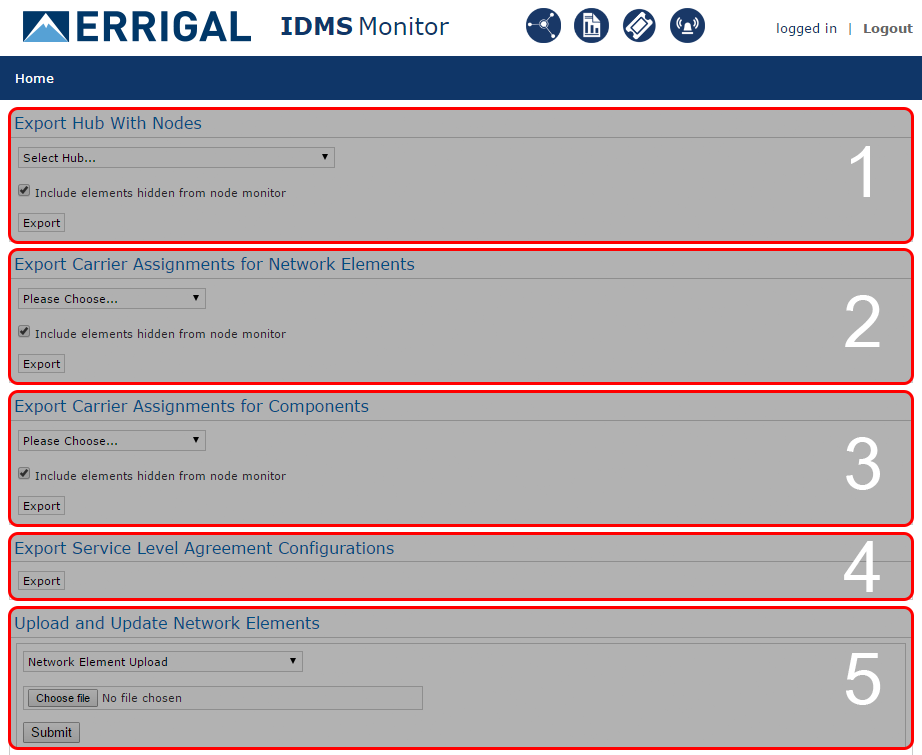
The below image shows what the Excel Loading page looks like:
Exporting
There are 4 options available for exporting load sheets:
- Export Hub with Nodes
- Export Carrier Assignments for Network Elements
- Export Carrier Assignments for Components
- Export Service Level Agreement Configurations
Export Hubs with Nodes
The most popular and most versatile export is the Export Hub with Nodes.
From the drop down menu you can select which controller to export.
Once selected you can choose to include elements hidden from Node Monitor (checked by default.)
This will include all Nodes, Hosts and Extension Units of the selected controller whether they are ON-AIR or not.
This can be helpful to investigate issues. Click Export to start the download of the excel file. If the download doesn't start immediately, click OK on the popup.
Depending on the browser that you are using the export may have been downloaded in a separate window. Click on it to open.
It should look something like this:

Line 2 contains information pertaining to the controller and lines 4 and below contain information pertaining to all of the controller's children i.e Hosts, Nodes, Extension Units.
There are a number of different columns that can be populated.
Some key columns:
- ID - If loading a new network element, leave this blank and change the CREATE HUB/CREATE NODE field to TRUE. This field cannot be edited.
- Carrier - Mobile Carrier of the network element
- Hub Name - Name of the Hub
- System Type - Type of network element, usually oDAS or iDAS but there are other options
- Hub IP Address - IP Address of the Hub
- Hub Status (Status) - Whether the Hub is ON-AIR or OFF-AIR
- Cluster - the cluster that the Hub belongs to
- Workflow - the workflow that the Hub defaults to
- Technology - technology of the Hub and it's children
- Name in Trap - name of the network element that is received in the trap
- Type - network element type e.g Host, Node, Extension Unit
Some of the columns are required fields to fill in. With this in mind if you import a changed sheet you may get validation errors.
Export Carrier Assignments for Network Elements
This section allows you to assign multiple carriers to network elements.
Clicking on the Please Choose dropdown menu allows you to export by Hub, Site Name or by Network Identifier.
Selecting an export option will display an additional dropdown where you can further refine your export by clarifying the hub name, site name or network identifier.
Checking the Include elements hidden from node monitor checkbox will include elements on the sheet that are marked as not visible in the node monitor.
Once you have made your selection, click on the Export button to begin the export.
Once completed this excel file will contain the list of network elements based on your selection above, in addition to several carrier columns.
To associate carriers with network elements, add a “Y” value into the appropriate row and column.

Export Carrier Assignments for Components
This section allows you to assign multiple carriers to components.
Clicking on the Please Choose dropdown menu allows you to export by Hub, Site Name or by Network Identifier.
Selecting an export option will display an additional dropdown where you can further refine your export by clarifying the hub name, site name or network identifier.
Checking the Include elements hidden from node monitor checkbox will include elements on the sheet that are marked as not visible in the node monitor.
Once you have made your selection, click on the Export button to begin the export.
Once completed this excel file will contain the list of components based on your selection above, in addition to several carrier columns.
Note: If there are no components configured for the chosen hub, site name or network identifier this sheet will be blank.
To associate carriers with components, add a “Y” value into the appropriate row and column.

Importing
Once the sheet has been exported and updated it will need to be imported for the changes to take effect at the knowledge base level.
Similarl to how there are a number of ways to export a sheet, there are a number of ways to import a sheet:
- Network Element Upload (Default)
- Contact Upload
- File Maker Node Upload (Deprecated)
- File Maker Contact Upload (Deprecated)
- Network Element Carrier Assignment Upload
- Component Carrier Assignment Upload
- Service Level Agreement Upload
Network Element Upload
If the sheet has been exported using the Export Hub with Nodes option it will be imported using this selection.
Simply select the sheet that the updates were made to and click Submit.
A dialog box will appear at the bottom showing the status of the upload and if there are any issues an error message will appear.
Network Element Carrier Assignment Upload
If the sheet has been exported using the Export Carrier Assignments for Network Elements option it will be imported using this selection.
Component Carrier Assignment Upload
If the sheet has been exported using the Export Carrier Assignments for Components option it will be imported using this selection.
Service Level Agreement Upload
If the sheet has been exported using the Export Service Level Agreement Configurations option it will be imported using this selection.
Supporting Info
Try some of the above out for yourself on Errigal QA
Please consult the Excel File Loader User Guide for more detail on all of the features discussed above. The User Guide can be found on the Errigal Support Page.
Onboarding Assessment
- Using Errigal QA navigate to the Excel File Loader
- In the Export Hub with Nodes selection choose a hub from the dropdown and export it.
- Open the file and make some changes.
- Import the updated file and make sure it uploads fully.
- Re-export the Contoller to make sure that the changes you have made applied successfully.
- Repeat for both the Export Carrier Assignments for Network Elements and Export Carrier Assignments for Components. Make sure you re-export the sheet to confirm your changes.
- Export another sheet using the Export Hub with Nodes selection.
- This time, enter invalid data. You can find out what fields are required and what values are accepted by using the File Loader Documentation.
- Import the sheet and make sure that you see a validation error.
- Fix the issues and re-import the sheet. It should successfully upload.
Please send the relevant Controller names and a summary of the changes that you made to your assessor.