Table of Contents
Indoor Mapping Widget
Authors: Andrey Shevyakov and Won Lee
User manual is available here.
Data Model

Rendering Mechanics
The GWT widget is used for the information presentation.
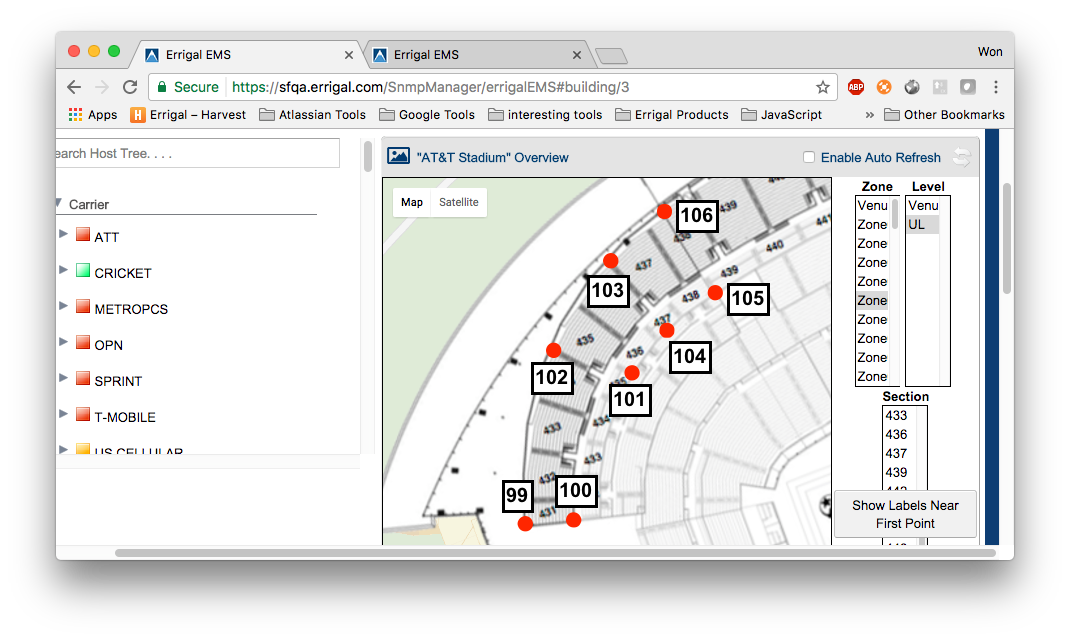
Building (Venue) Drill-Down Level
All zones are visible. The venue layout image is visible (if set up). The building (venue) boundaries are determined by its most northeastern and most southwestern points (always square shape, obviously). The zones shapes (polygons) are formed from their child section shapes (polygons). A zone shape (polygon) is rendered based on the supplied LatLng order (SectionBoundary model, latLngZoneOrder property).

Level Drill-Down Level
All child sections are visible. The level layout image is visible (if set up). The level boundaries are determined by its most northeaster and most southwestern points (always square shape, obviously).

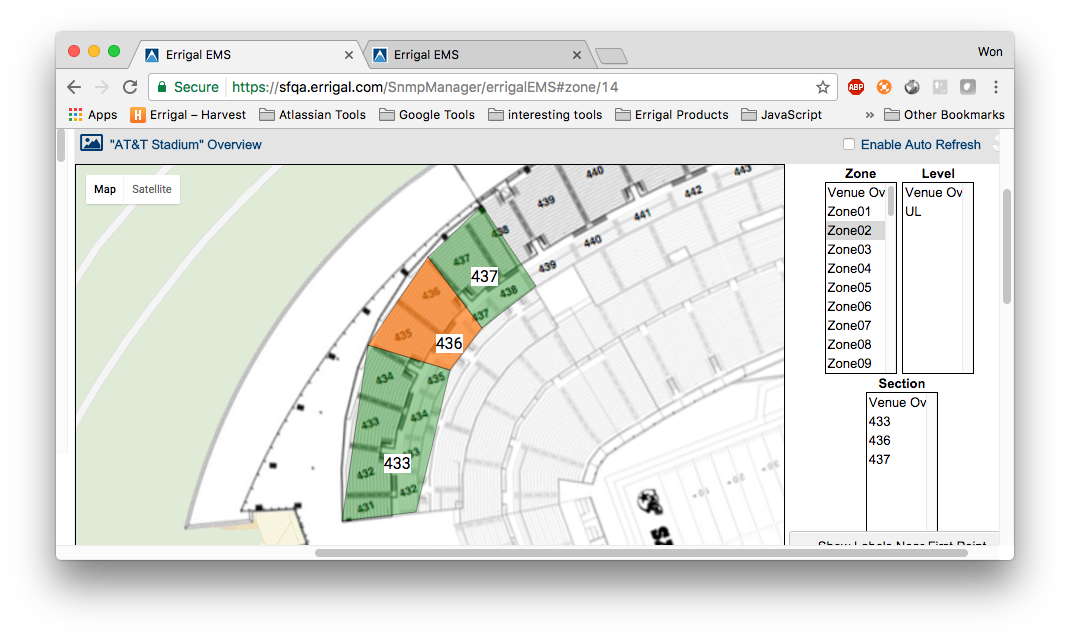
Zone Drill-Down Level
All child sections are visible. The level selection list is filtered to exclude levels which do not share the currently visible child sections. The zone has no boundaries and no image.

Section Drill-Down Level
The currently selected section is visible. The currently selected section-associated network elements (NetworkElementSection model) are visible (the alarms on the network elements are only visible to the relevant users (carrier-visibility filtering)). The section shape (polygon) is rendered based on the supplied LatLng order (SectionBoundary model, latLngOrder property).

Loading of the Venue Data
Hours Spent for each Venue
AT&T Stadium
Around 80 hours to complete.
- 10 hours to create script that converting loading sheet into sql script
- 15 hours to identify section boundary (writing on paper)
- 55 hours to populating LatLng data
Data Customer should provide us
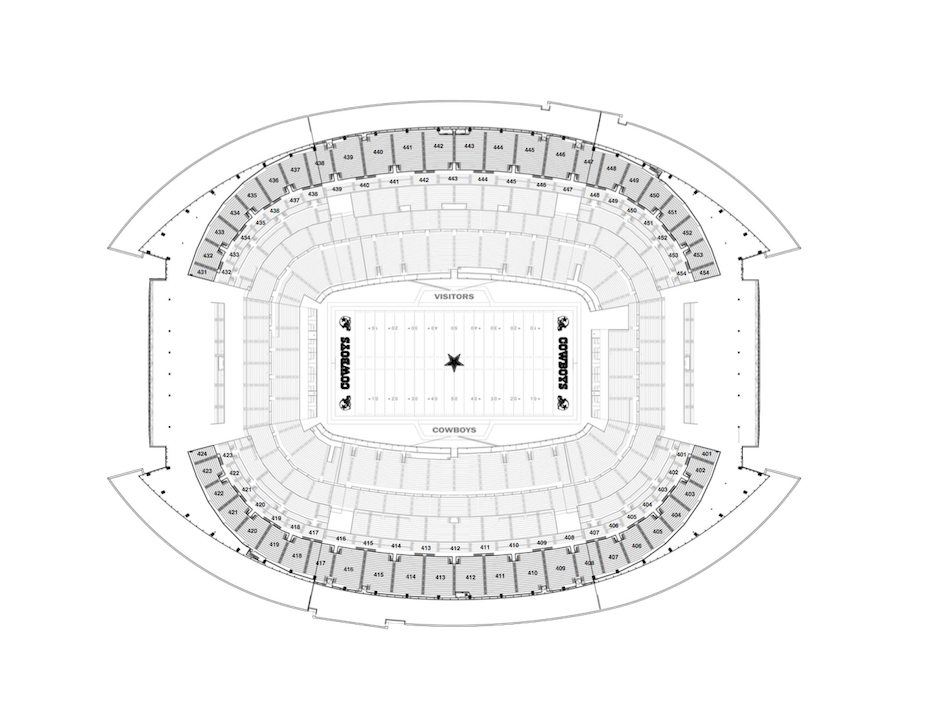
Floor Plan Image
This is the image to be used as Overlay Image for Level. Image below is modified by Errigal, adding transparency to outside stadium floor.
Data for define section boundary and network element belongings
Those documents don't have to be separate documents except Floor Plan. Floor Plan image will be used as overlay image so it will be better if image doesn't contain a lot of clutters that makes map difficult to see. Following document will help [determining Section Boundary](#draw_section_on_paaper).
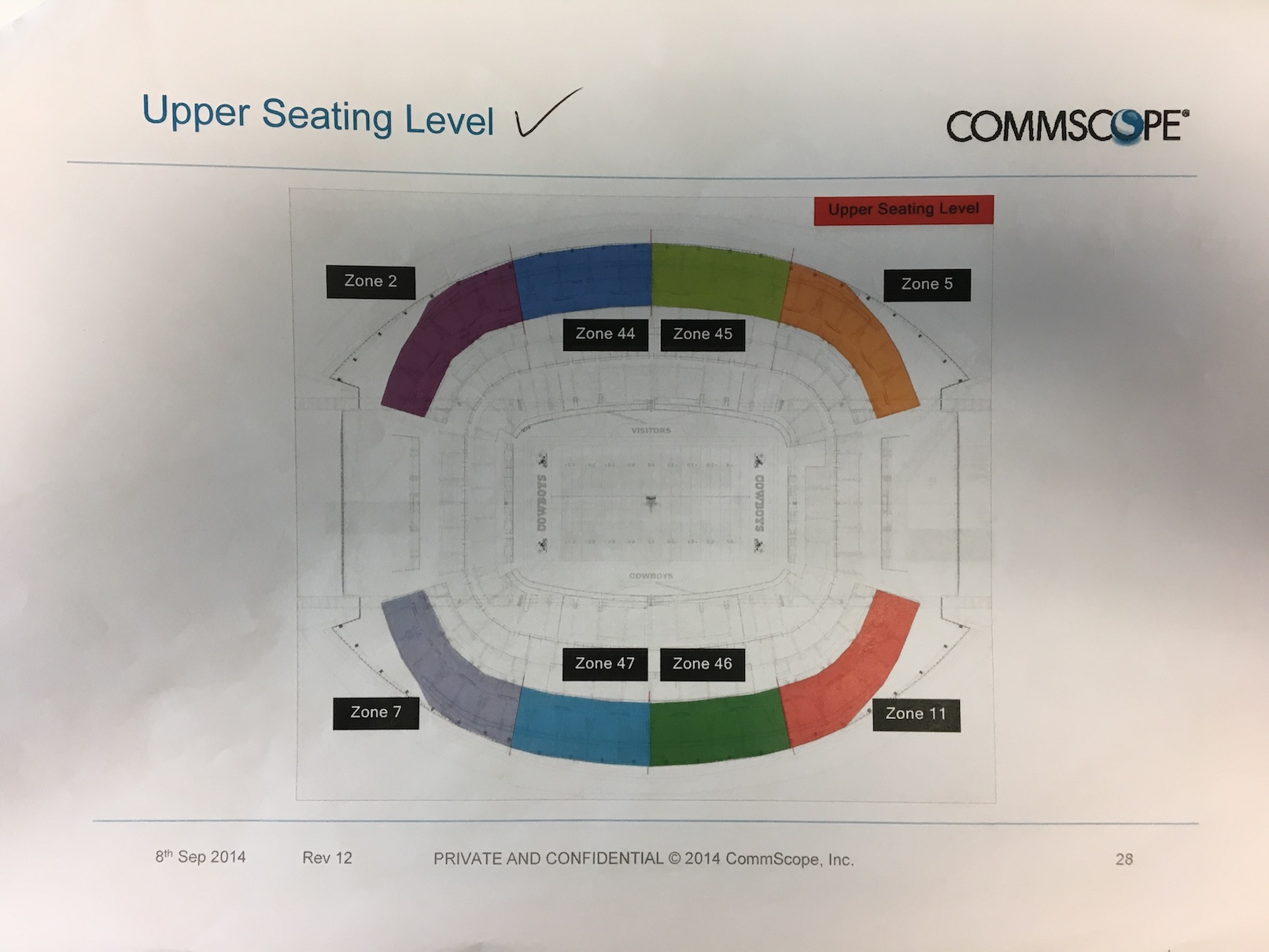
Zone Divided Floor Image
This gives you idea how zone are divided.
Document that describes where Network Element located in each Level
This document gives you idea where network element and antenna connected to RU are located.
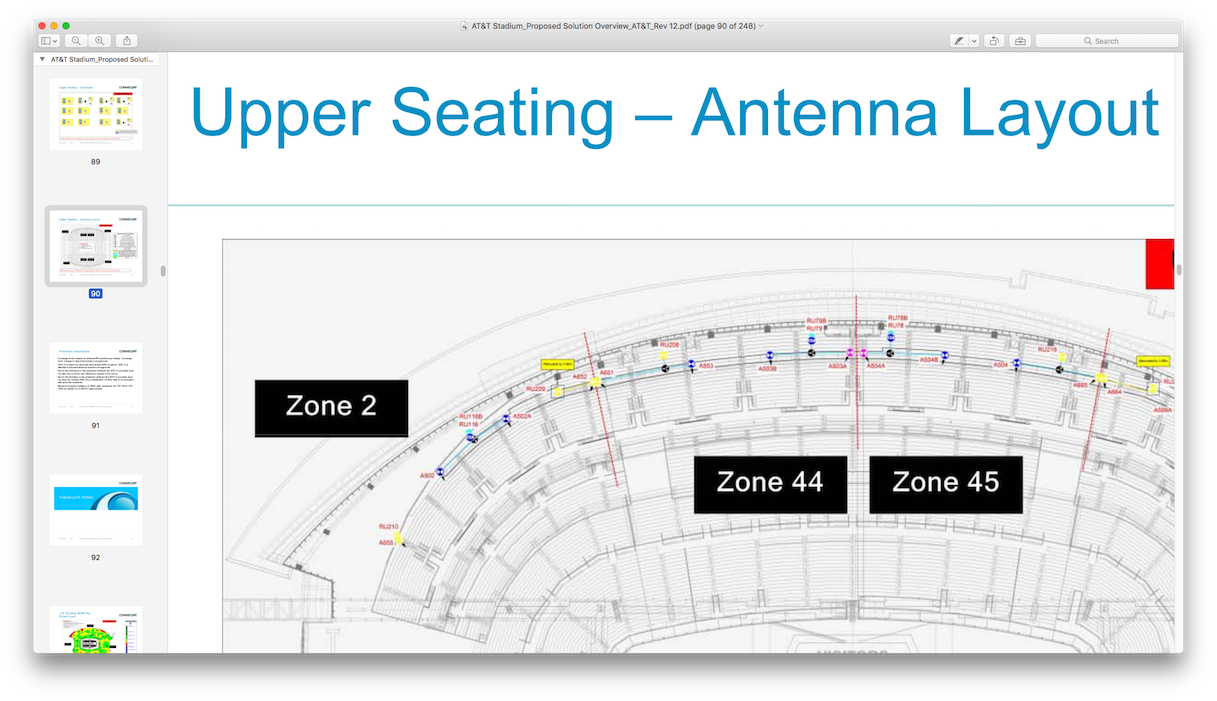
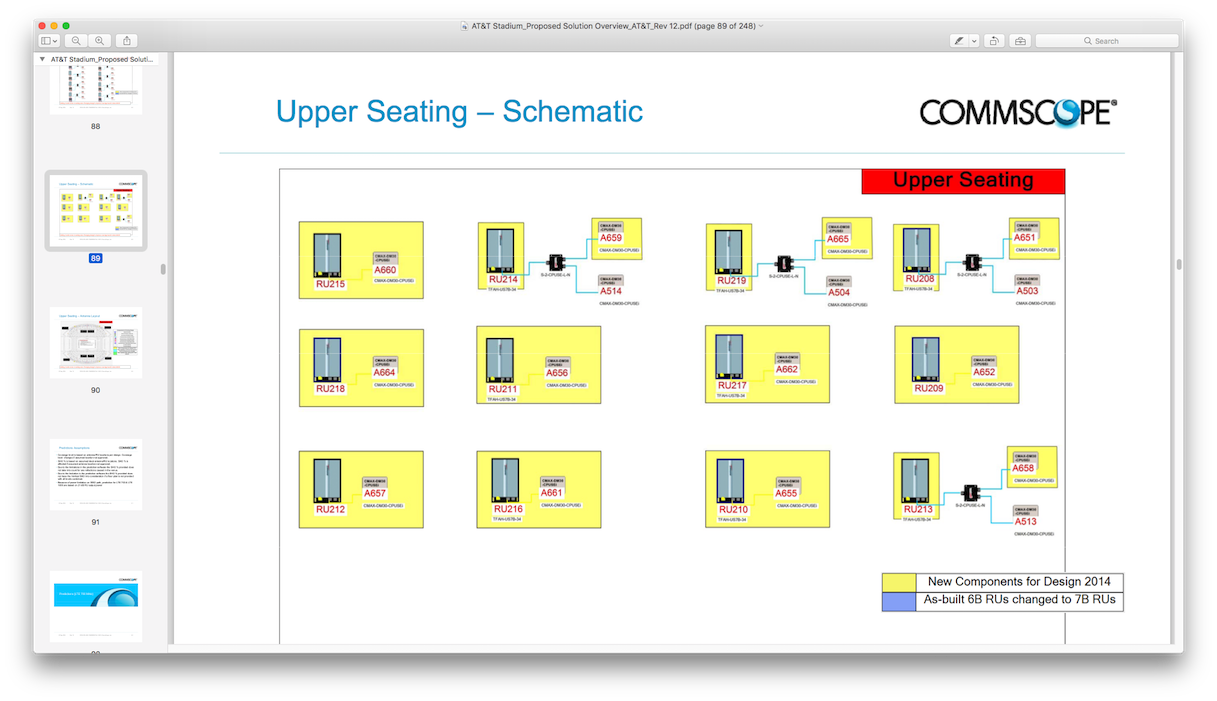
Document that describes what Antenna connected to Network Element
This document will be necessary if above document is difficult to see Antenna - Network Element connection. This could happen because document is low resolution or to many lines draw close togather.
This document gives you idea what antenna connected to network element.
Ideal Document Provided
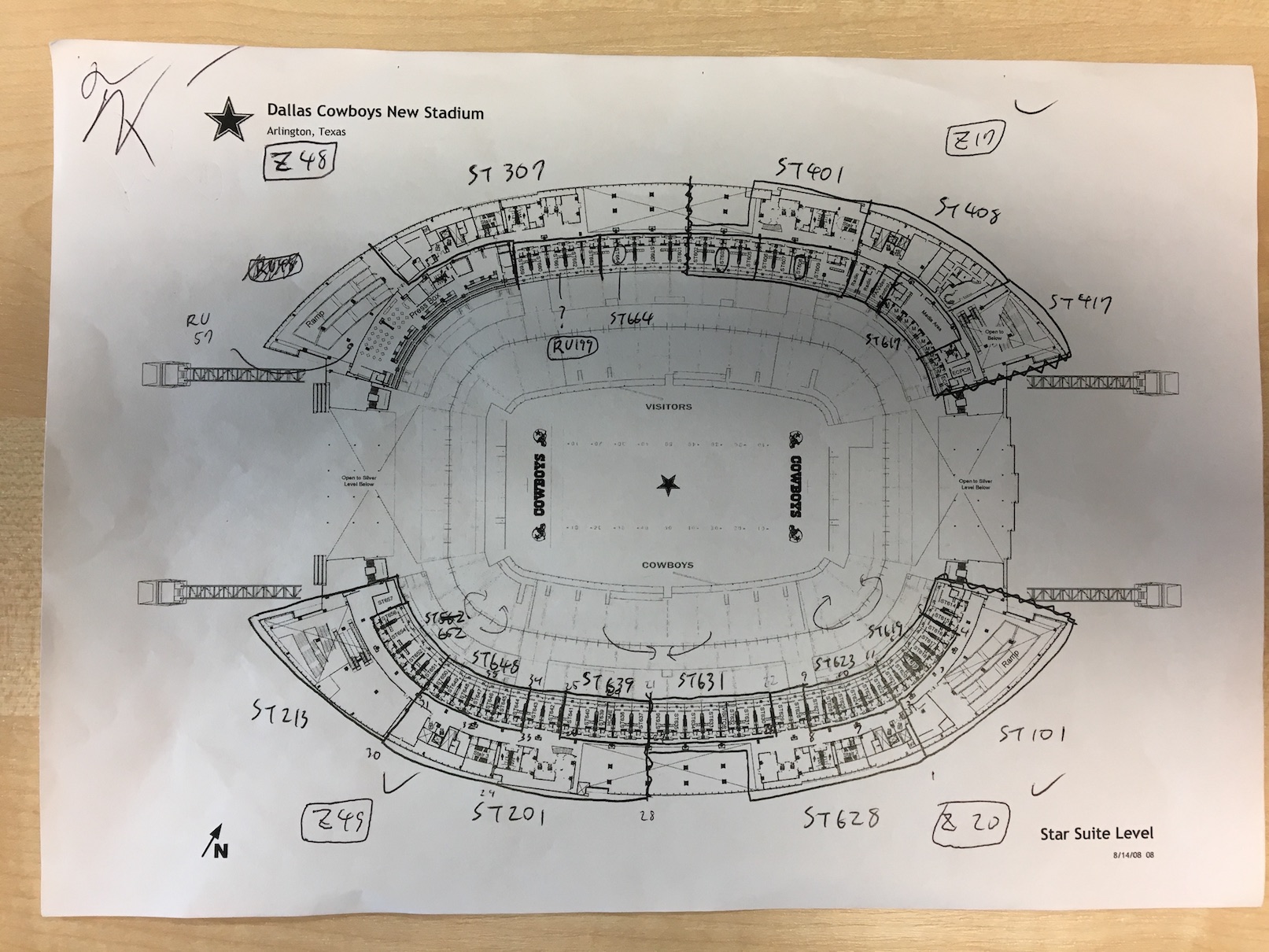
If we could get document that already has section boundary, we don't have to do work written in section [determining Section Boundary](#draw_section_on_paaper).
Example is
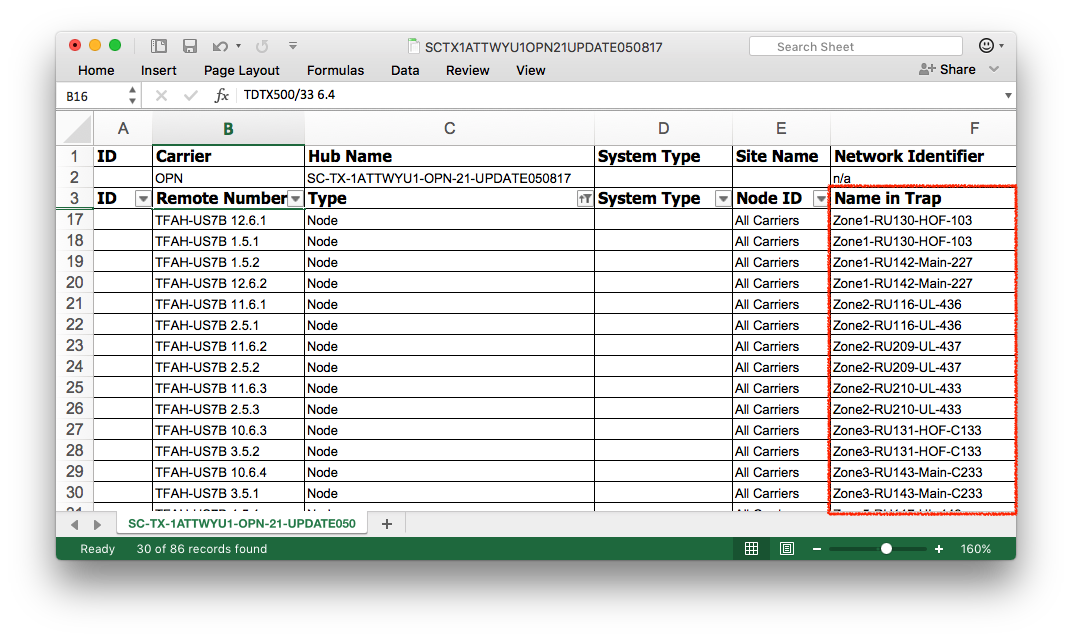
Document that connect network element in SnmpManager and above document <a name="ne_connect_document"></a>
Network Element (RU) name in Document from AT&T Stadium example is totally different from what's in SnmpManager database.
Process Data
Scripts that could be useful can be found in Bitbucket
Draw Section Boundary on Paper <a name="draw_section_on_paaper"></a>
If, sadly, you didn't get document that how section is divided, you have to draw section boundary by your self.
- Print out floor plan image
- Check where RU and it's antenna located
- Draw line into paper
Good things about paper are easy to discard and easy to recover all line you draw correctly.
Section is supposed to be CONTIGUOUS
- It can't cross zone and level
- It can't be divided by another section
Venue map doesn't such a section
Section can contain multiple RU. Check [document](#ne_connect_document) carefully.
Build Basic & Scaffolding Building Data
VenueOwner and Building.
VenueOwner is simple domain that only has name.
Building has following fields
- name
- buildingImage … image to be used as overlay in map
- northEast … LatLng that specify north east point and used as south east corner of overlay image
- southWest … LatLng that specify south west point and uses as south west corner of overlay image
Image is not necessary. northEast and southWest is necessary. Those two point also used to calculate center of map.
Zone, Level and Section
If datasource is name_in_trap field of load sheet, you may be able to use |script.
For AT&T Stadium, I turned all name_in_trap field value into new line separated file. Script parse each line and create insert statement for zone, level and section.
Zone is simple domain that has name. It also has building_id filed which specify which building the zone belongs to.
Level domain has following fields
- name
- overlayImage … image to be used as overlay in map
- northEast … LatLng that specify north east point and used as south east corner of overlay image
- southWest … LatLng that specify south west point and uses as south west corner of overlay image
- building_id … specify which building the zone belongs to
northEast and southWest is mandatory. Ideally this is the same as building.
Section domain has following fields
- name
- level_id … specify which level the section belongs to
- zone_id … specify which zone the section belongs to
- manuallyOrderedBoundaries … field that forgotten to remove, not used
In order to map works, you need to add SectionBoundary entry for each section you've created. For now, create temporal/scaffold LatLng point. Assign that LatLng to all section you've created. The same LatLng can be used for unlimited number of sections.
Create Section Boundary
All the boundary you see in the map is stored in LatLng (lat_lng) domain.
LatLng and section association are stored in SectionBoundary (section_boundary) domain.
SectionBoundary is linking domain which holds
- Section
- LatLng
- lat_lng_order … order of rendering for section, can be NULL
- lat_lng_zone_order … order of rendering for zone, can be NULL
if order is not filled in, it will use SectionBoundary's id in descending order. If oder is filled in for some of entry, only the SectionBoundary with order not null will be used.
def zoneBoundaries = SectionBoundary.findAllBySectionInListAndLatLngZoneOrderIsNotNull(sections)
if (zoneBoundaries.size() == 0) {
  zoneBoundaries = SectionBoundary.findAllBySectionInList(sections)
}
In order to assist getting coordinate, open console of your browser. Click any point in Venue Overview Map widget. You will see latitude and longitude are displayed in console.
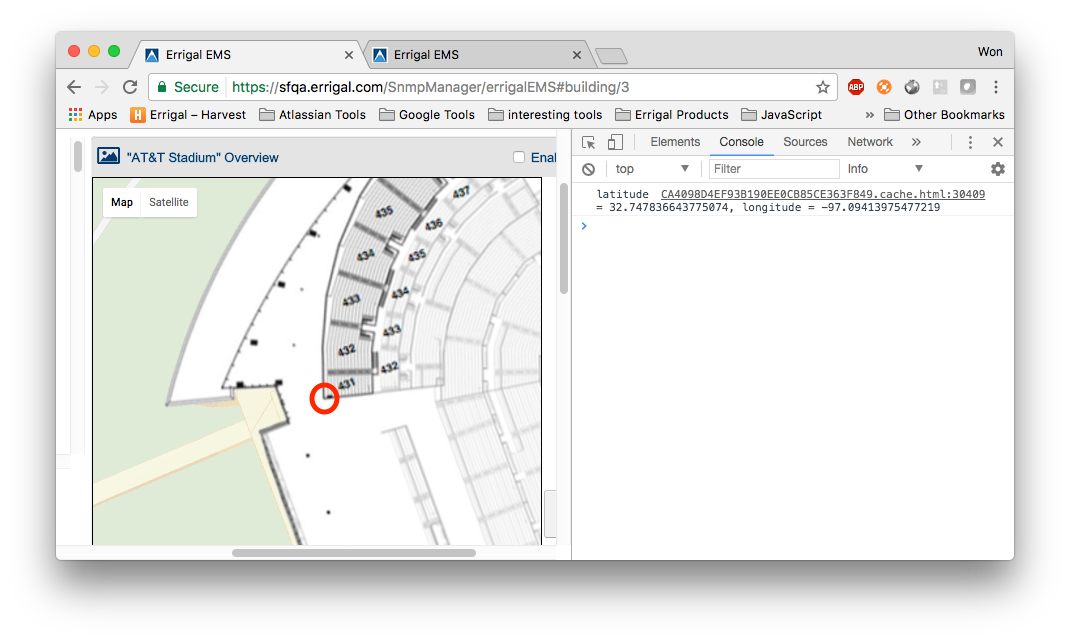
LatLng domain has following fields.
- latitude … float(9,6)
- longitude … float(9,6)
- label … format used for AT&T stadium is “BuildingName - LevelName - ZoneNames - SectionNames”
If LatLng is used by multiple level, zone and section, use character “&” and by alphanumeric order.
For instance, “AT&T Stadium - Main & ROH - Zone 17 & 48 - 401 & 603 & 700”.
Be very very careful if LatLng can be used by multiple sections, crossing different levels. Reuse of LatLng makes maps looks better because there are less overlapping polygons on the map. But if you didn't label correctly, you might miss LatLng when you putting seciton boundary for another section in different Level or/and Zone.
Label IS Important
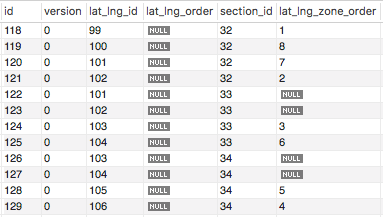
Insert new entry into section_boundary. I strongly recommend that lat_lng_id follows descending order as id for section_boundary.