Table of Contents
UI Patterns - Selection Controls
Author: Michelle
Examples
Checkboxes
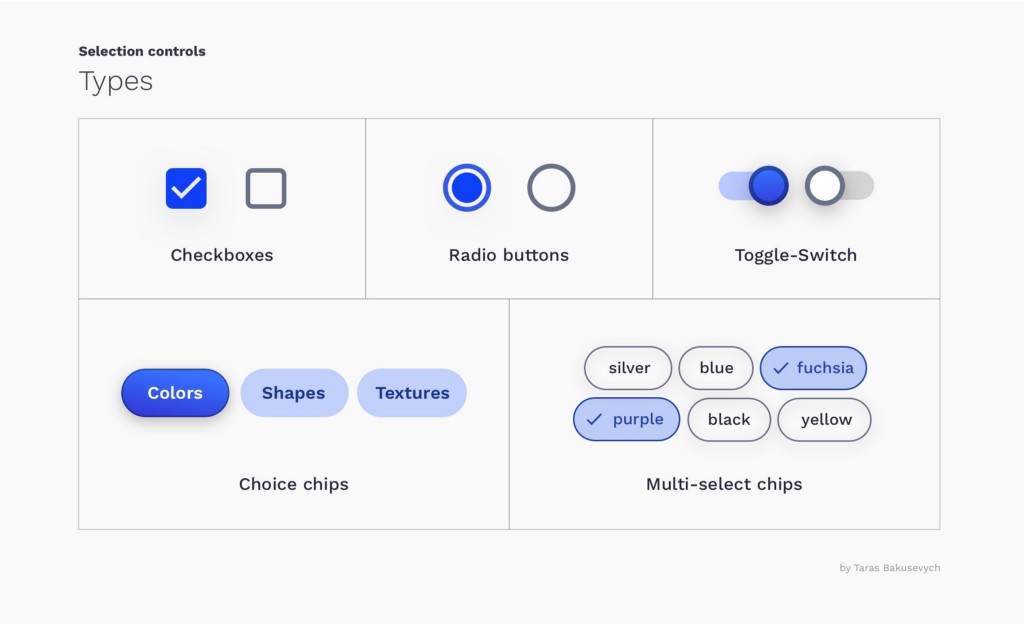
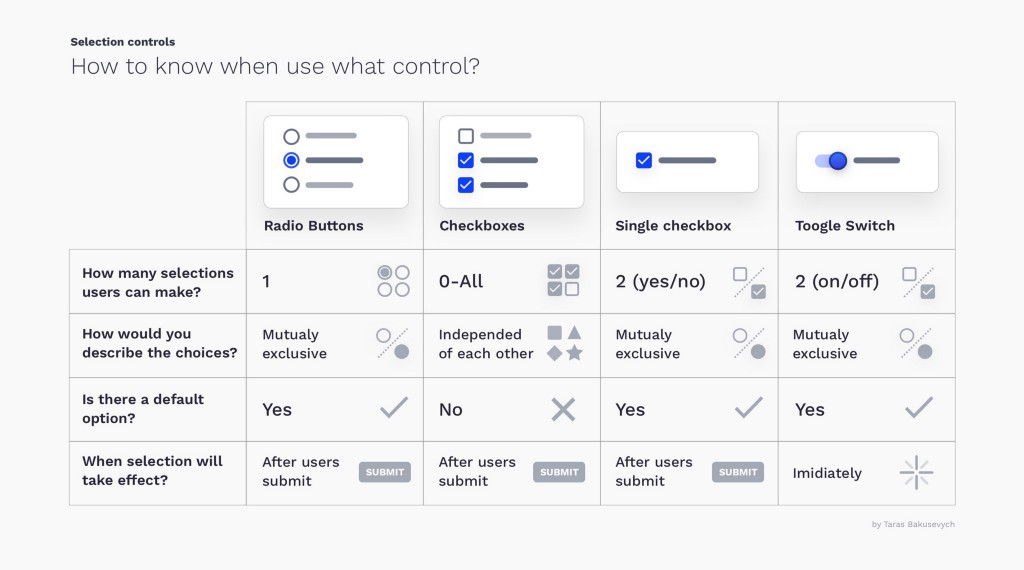
Used when there are one or many options where more than 1 can be selected
Radio Buttons
- Used when there are 2 or more options where 1 must be selected.
- If possible, use radio buttons rather than drop-down menus - Making all options permanently visible so that users can easily compare them reduces cognitive load
- It is better to have a selected radio button by default
- Users cannot deselect and set the radio button back to its original state once one has been selected. If users might need to refrain from making a selection, you should provide a radio button labeled “None.” Structure the list of options in a logical order, and harness the power of suggestion
Toggle Switches
- Used when there are 2 options and one must always be selected (with a default value)
- Use toggles were selection will immediately take effect
Choice Chips
Compact alternative to radio buttons. At least 2 options where 1 can be selected.
Multi-Select Chips
Compact alternative to checkboxes. Primarily used for filtering on mobile
When To Use What Control
States
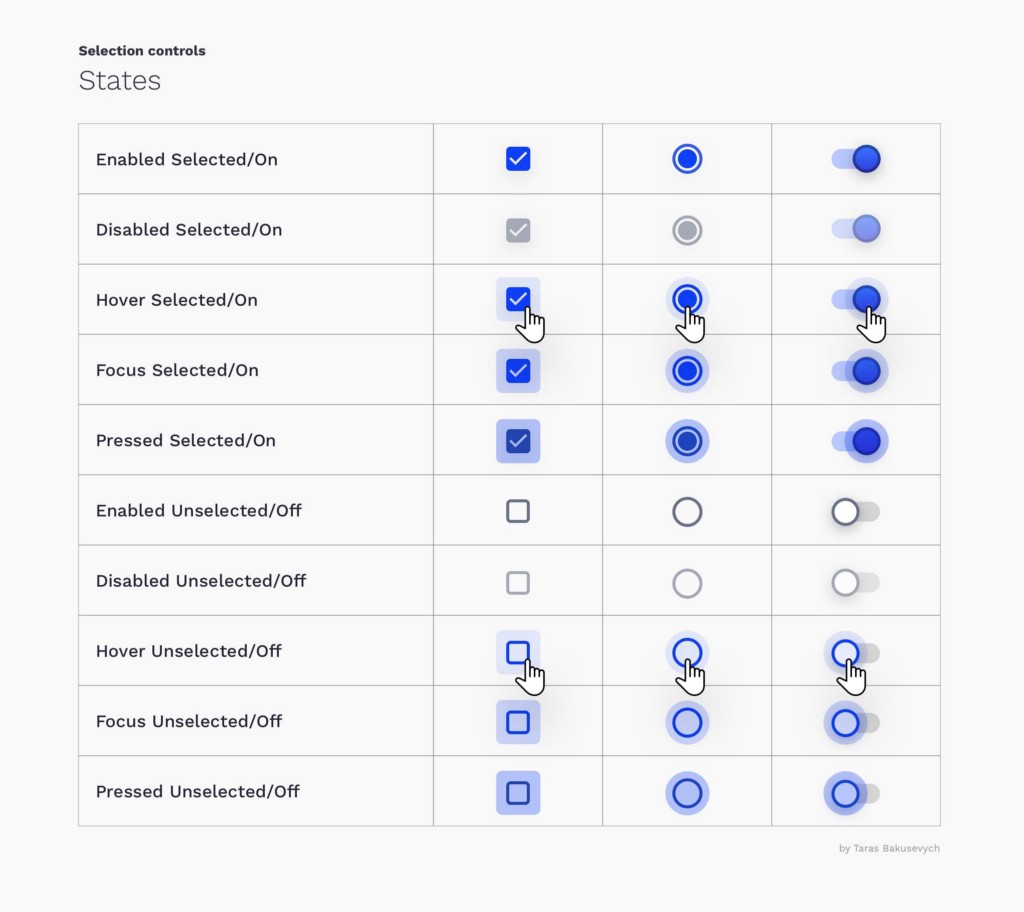
All of them have enabled, disabled, hover, focused, and pressed states.
Best Practices
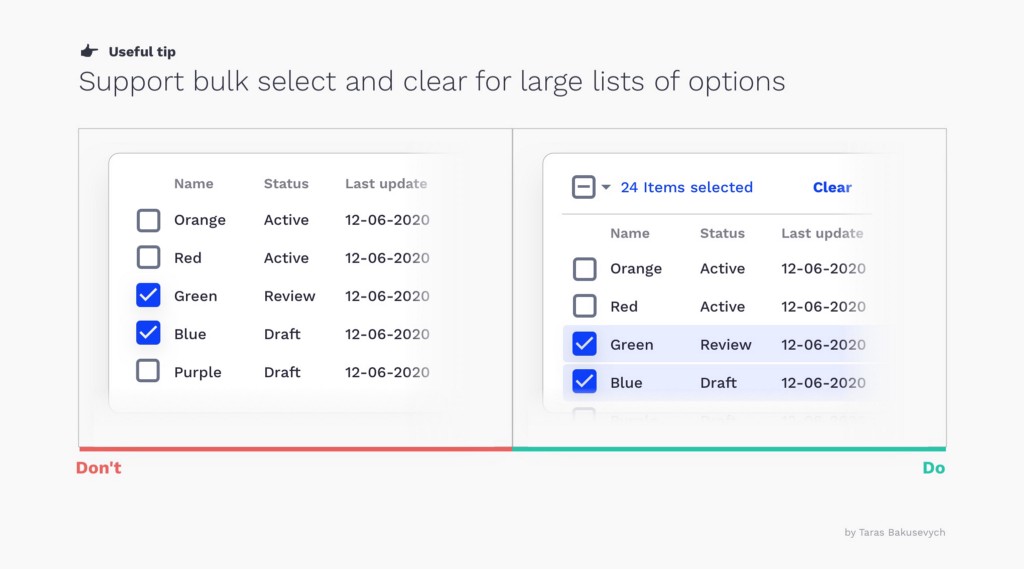
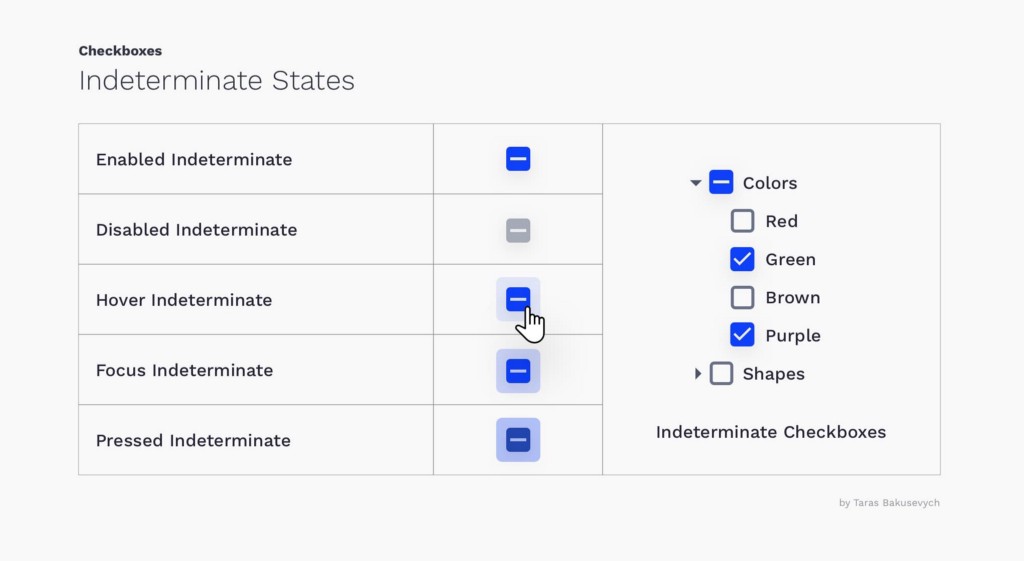
Don't forget about the indeterminate state
- The state is not fully determined
- e.g. when there's a parent checkbox that has multiple children, some of which are selected and others are not.
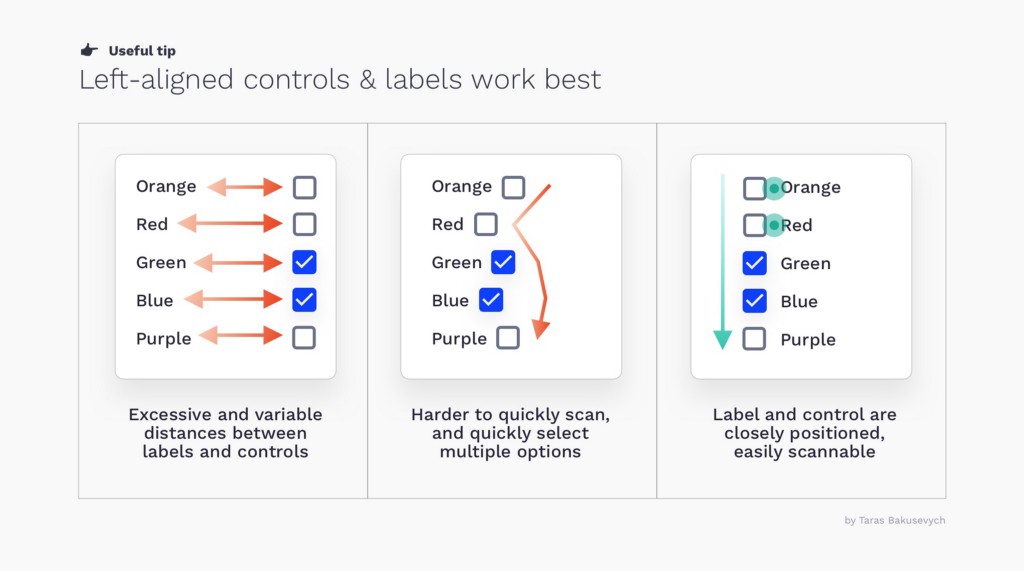
Presenting options in the vertical list will help users easily scan them
Left-aligned controls and labels will work best - fastest completion times and fewer mistakes
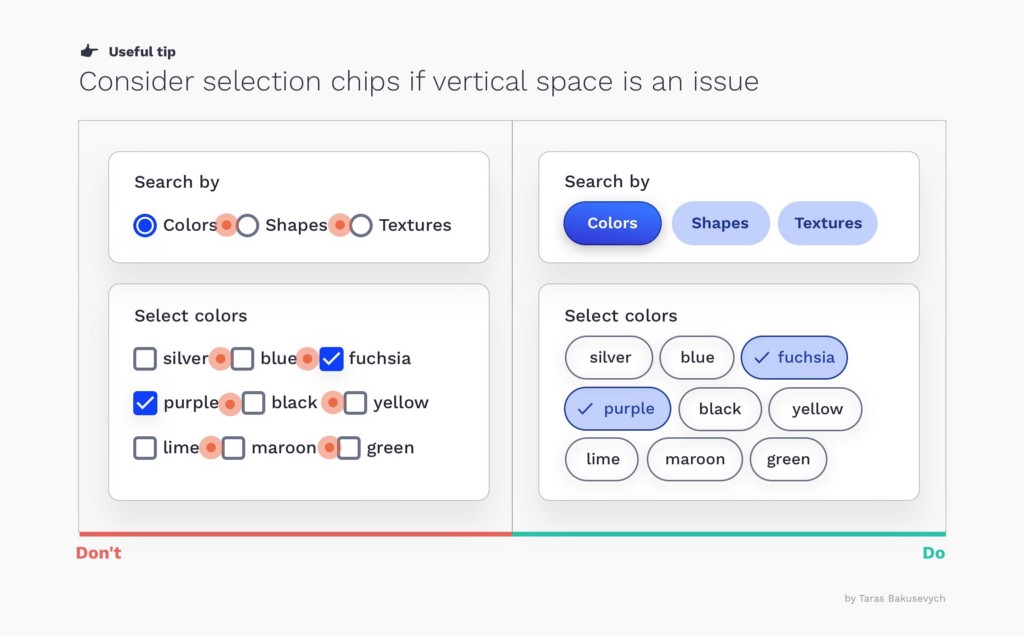
Consider chips if vertical space is an issue
prevent a situation when it’s really difficult to see which control is selected ( make sure to space the buttons and labels)
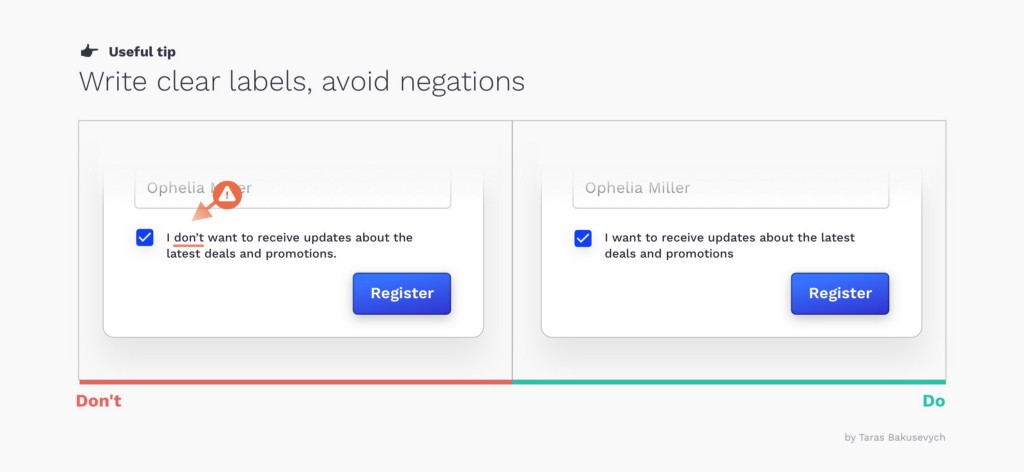
Write clear labels, avoid negations
Avoid situations when users need to tick the box in order for something not to happen.
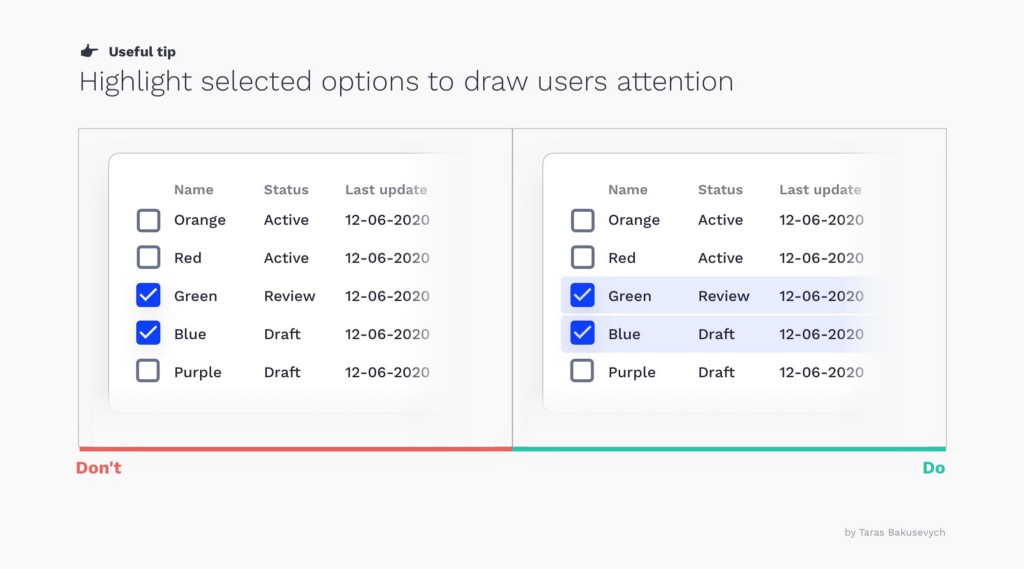
Highlight selected options to draw users attention
Visually differentiate selected options from others, especially important for rows selection in data tables.
Support bulk select and clear