Table of Contents
UI Patterns - Dropdowns
Author: Michelle
Dropdown Menu Anatomy
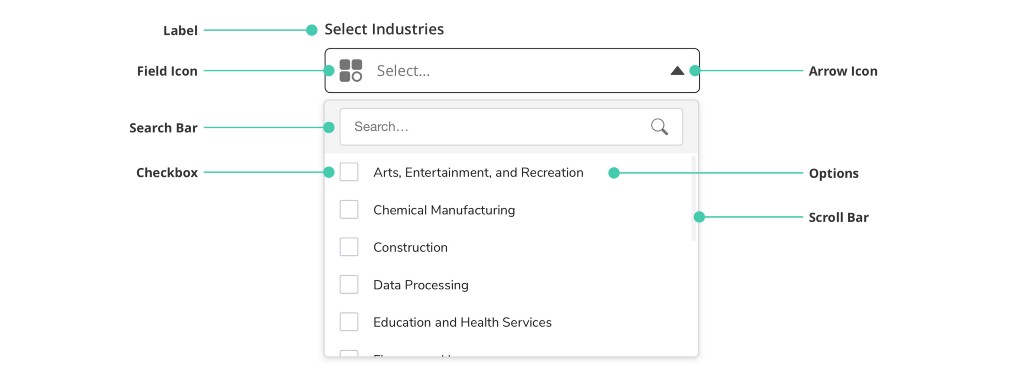
- Label: Inform users on what should be selected.
- Field Icon (Optional): Supports the label by indicating the type of information required.
- Search Bar (Optional): Used to help users easily find their intended option — for menus that consist of 20 or more options.
- Checkbox (Optional): If multiple selections are enabled.
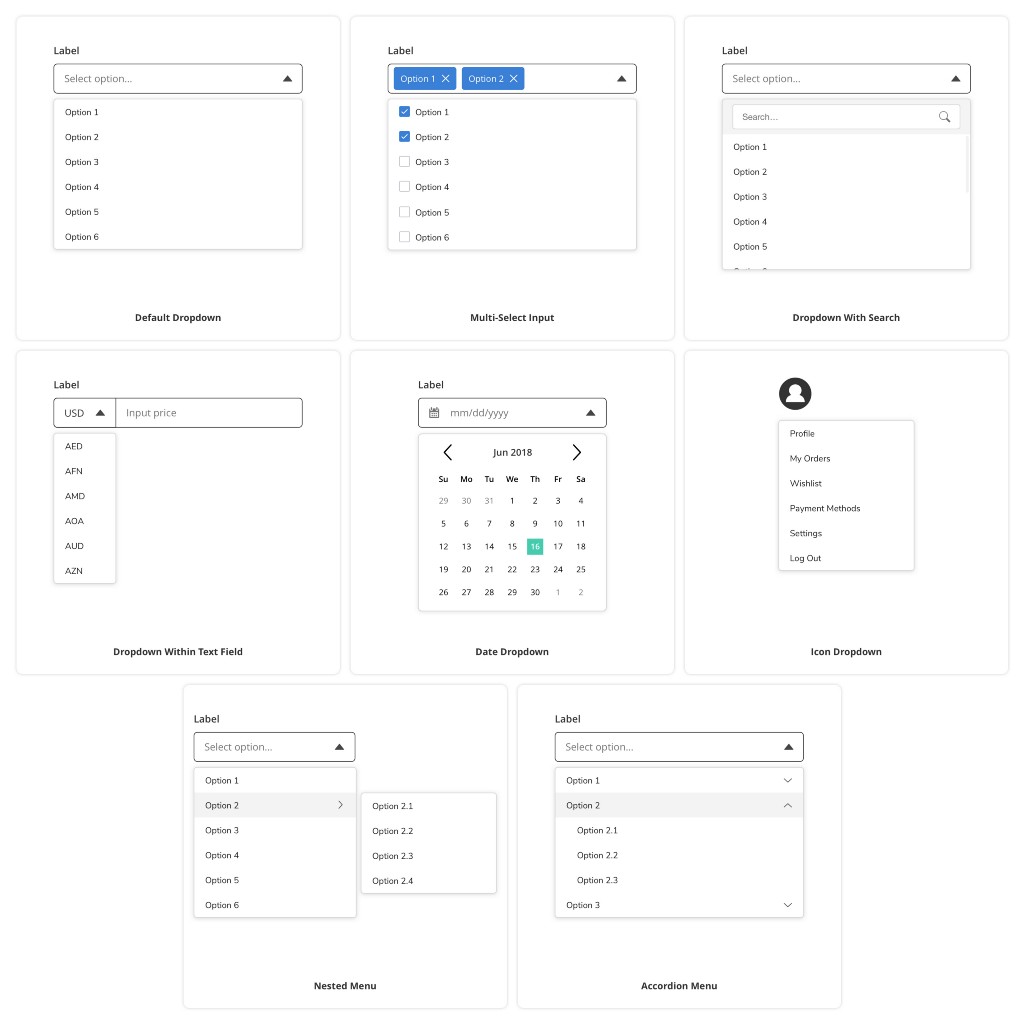
Dropdown Menu Types
Depending on the nature of the input required.
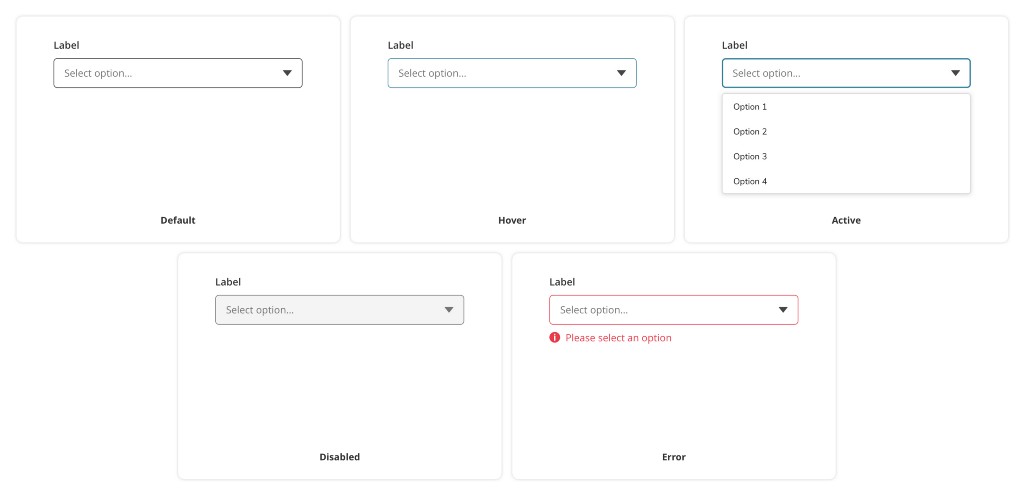
Dropdown Menu States
Dropdown menus can have the following states: default, active, hover, disabled, focused, and error.
Best Practices
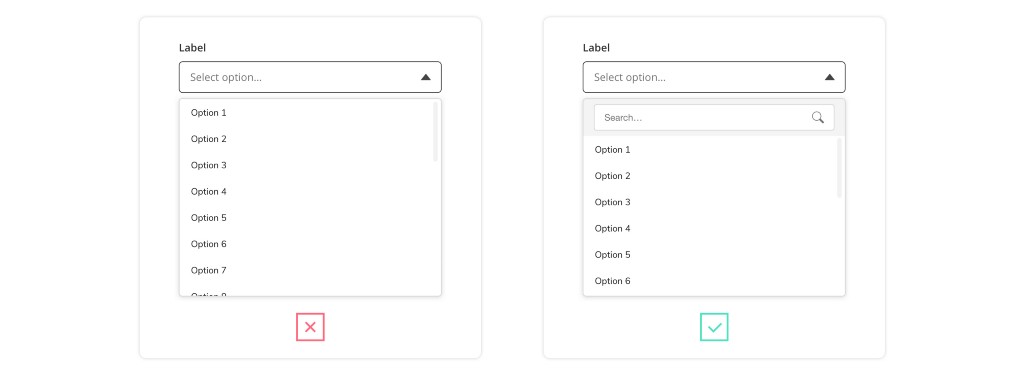
Avoid Long Dropdowns
When there are more than 15 options, use a text field with autocomplete functionality.
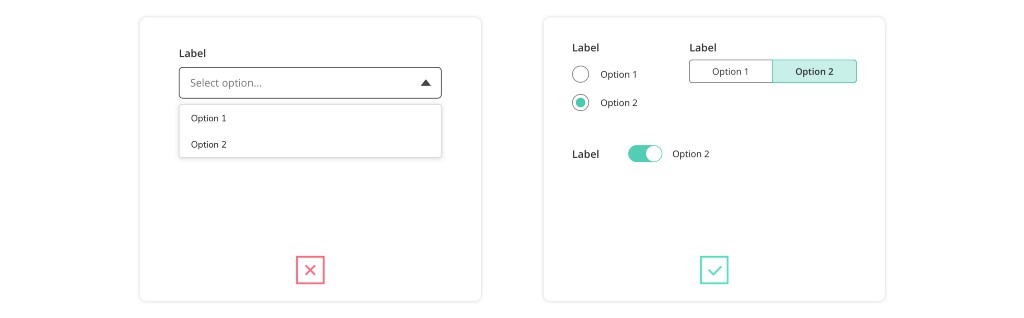
Too Few Options
When very few options, consider radio buttons, toggles, or checkboxes.
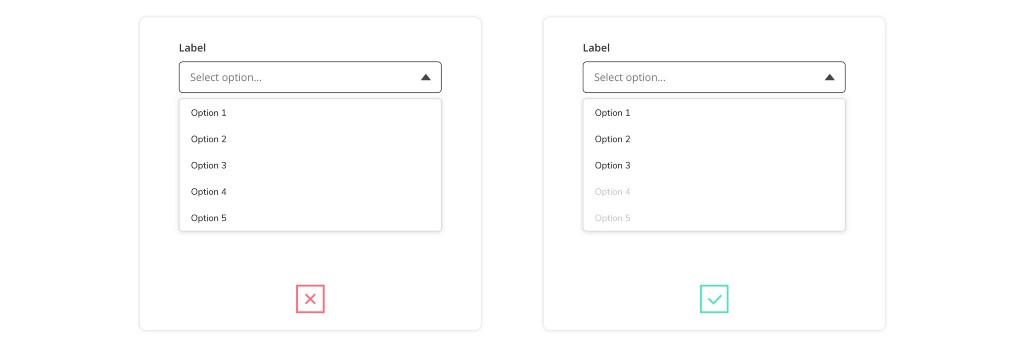
Grey Out Disabled Options
When there’s an option that is disabled or unavailable, it should be greyed out instead of removed
Use Clear & Concise Labels
- Use Sentence Case
- For action menu items, use verbs to describe the action that will occur
- For links, use nouns to identify the page that the user will be directed to
- Exclude articles in menu items; use “delete page”, instead of “delete the page”
- Keep menu items to a single line of text
- Organize the menu items by sorting the list in a logical order - most selected option at the top, if known.